1
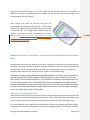
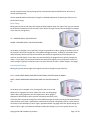
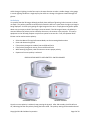
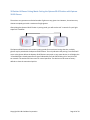
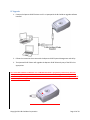
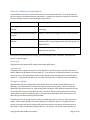
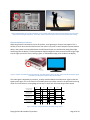
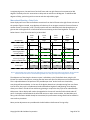
Set Polarity Mode It is possible that the 3D image, although perfectly clear and free of ghosting, looks incorrect or shows no depth. The polarity could be reversed, which means the left lens is open when the right eye image is being displayed – the left eye is getting the right image and vice versa. Simply place the glasses upside down over your eyes to check if the image is now corrected. If the 3D image is better, the polarity is reversed. Reversal of polarity can be caused by the source, the content or the projector. The source equipment or the 3D ready projector may have an option to correct this. If not, the Optoma 3D-RF Emitter can be used to reverse polarity. Select the Set Polarity Mode, see the Accessing Modes section Push and release the joystick in any direction If the polarity changes to standard, two red LEDs will be lit If the polarity changes to reverse, three red LEDs will be lit While wearing 3D glasses, view 3D content to ensure proper polarity Repeat until correct polarity is selected Set Polarity mode will time out and normal mode of operation will resumes after 10 seconds of inactivity PUSH JOYSTICK ANY DIRECTION (UP, DOWN, RIGHT, LEFT) = SWITCH POLARITY STANDARD POLARITY REVERSE POLARITY Once the correct polarity is achieved, stop pressing the joystick. After 10 seconds, the LEDs will turn off, indicating that the new polarity setting has been saved. This polarity setting will be saved and used until Copyright 2011 Bit Cauldron Corporation Page 11 of 24