1
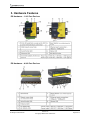
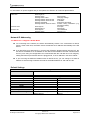
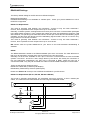
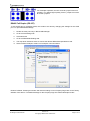
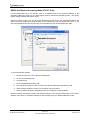
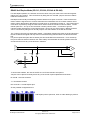
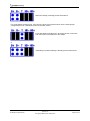
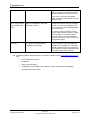
For information on power supplies and pin outs please see Section 18 Technical Specifications. LED Information Status LED Serial Port LED Ethernet LED Green Light On Flashing Green Flashing Red & Yellow Flashing between Green & Red Flashing between Green & Red Flashing Green/Red Flashing between Green & Yellow Green light on Flashing light on Green light on Flashing Green Device Ready Changing Settings Querying IP IP Problem Performing Hard Reset Problem during initialization (e.g. Firmware Problem) Port Open Data RX/TX Link established Data RX / TX Network IP Addressing The ES device is shipped in DHCP Mode. On connecting to the network, the device automatically checks if it is connected to a DHCP Server. If this is the case, the DHCP server will allocate an IP address automatically to the ES device. If no DHCP Server is detected (e.g. you have the ES device plugged directly into the PC), the ES device will default to an IP address of 192.168.127.254 within 60 seconds. Please ensure the PC you‟re using for configuration can communicate with the 192.168.127.xxx IP range by setting the Ethernet port the ES device is plugged into, to an IP address in the same subnet. If you are using the default IP address with no DHCP server, you can change to a static IP address to avoid having to wait 60 seconds for the default address of 192.168.127.254 Default Settings Device Network Address Web Server Port Network Setting DHCP Mode 80 Port Settings RS232 Port Baudrate Databits Stop bits Parity Flow Control Duplex mode Protocol Settings ES Range Product Manual 115200 8 N 1 None Full Duplex Telnet + COM port control Mode (Server) Version 2.8 © Copyright Brainboxes Limited 2012 RS422/485 Port 115200 8 N 1 None Full Duplex Telnet + COM port control Mode (Server) Page 9 of 57