1
Advanced product features
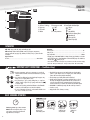
SafeSense® Technology
Stops shredding immediately when
hands touch the paper opening
Jam BlockerTM
Blocks jams before
they start
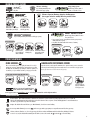
JAM BLOCKERTM
If Remove Paper icon illuminates during the shredding process
(due to paper misfeed or wrinkle) follow the procedures below.
Blocks jams before they start
1
Shredder pauses for
3 seconds
Reduce paper quantity to
an acceptable amount and
refeed into paper entry
3
2
1
2
If Remove Paper icon ( ) is
illuminated, there is too much paper
for the shredder to power through
Energy Savings System
Optimal energy efficiency 100% of
the time – in use and out of use
Set to Reverse (
and remove paper
)
Set to Auto On ( ) and
refeed into paper entry
ENERGY SAVINGS SYSTEM
SAFESENSE® TECHNOLOGY
Optimal energy efficiency 100% of the time –
in use and out of use.
Stops shredding immediately when hands touch the paper opening.
• Saves energy in four ways: energy-efficient electronics, jam prevention,
standby mode and sleep mode.
• Sleep Mode shuts down shredder after 2 minutes of inactivity.
SET-UP AND TESTING
1
2
3
4
WHEN IN SLEEP MODE
1
Set to Auto On (
)
Touch test area and
look for the SafeSense®
indicator to illuminate
SafeSense® is active and If hand is held on SafeSense®
working properly
area more than 3 seconds
shredder will shut off
2
3
or
In sleep mode
To get out of sleep mode set to
OFF ( ), then Auto On ( )
Insert paper
PRODUCT MAINTENANCE
OILING SHREDDER
All cross-cut shredders require oil for peak performance. If not oiled, a
machine may experience diminished sheet capacity, intrusive noise when
shredding and could ultimately stop running. To avoid these problems, we
recommend you oil your shredder each time you empty your waste bin.
FOLLOW OILING PROCEDURE BELOW AND REPEAT TWICE
2
1
Set to Off ( )
*Apply oil across entry
Cleaning Auto-Start Infrared Sensors
Paper detection sensors are designed for maintenance free operation. However, on rare occasions, the
sensors may become blocked by paper dust causing the motor to run even if there is no paper present.
(Note: two paper detection sensors are located in the center of the paper entry).
TO CLEAN THE SENSORS
3
Press and hold Reverse
(
) 2-3 seconds
1
2
3
Turn off ( ) and
unplug shredder
Locate Auto-start
infrared sensor
Dip cotton swab in
rubbing alcohol
*Only use a non-aerosol vegetable oil in long
nozzle container such as Fellowes 35250
4
Using cotton swab, wipe
away any contamination
from the paper sensors
Go to Support Section at www.fellowes.com or see back page of manual for useful telephone numbers.
TROUBLESHOOTING
15
Overheat Indicator: When the Overheat Indicator is illuminated, the shredder has exceeded its maximum operating temperature and needs to cool down. This
indicator will remain illuminated and the shredder will .not operate for the duration of the recovery time. See Basic Shredding Operation for more information about
the continuous operation and recovery time for this shredder.
Bin Open: The shredder will not run if the bin is open. When illuminated, close the bin to resume shredding.
Remove Paper: When illuminated, press reverse (
) and remove paper. Reduce paper quantity to an acceptable amount and refeed into paper entry.
SafeSense® Indicator: If hands are too close to the paper entry, the SafeSense® indicator will illuminate and the shredder will stop shredding. If SafeSense®
is active for 3 seconds, the shredder will automatically turn off and the user must set the switch to OFF ( ), then Auto On ( ) to resume shredding.
3