1
IMPROVING YOUR WORKFLOW
|
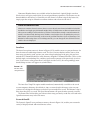
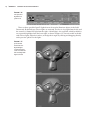
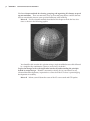
Figure 1.27
Loop selection
in Face
selection mode
Another useful selection tool, Select Vertex Path, can be found in the Specials menu by pressing the W key over the 3D viewport. With exactly two vertices selected, this option will select
the shortest edge path between the two vertices.
Selecting Similar Elements
The Shift+G menu enables you to select all similar elements to the currently selected element,
based on a variety of possible criteria.
In Vertex selection mode, Shift+G enables you to select other vertices that share the same vertex normal direction as the currently selected vertices, vertices that are members of shared vertex
groups with the currently selected vertices, or vertices that are used by the same number of faces.
In Edge selection mode, the Shift+G menu enables you to select edges that are the same
length, run in the same direction, or have the same number of face users as the selected edges.
You can also select edges based on whether they are part of a seam or crease, or based on their
sharpness value. This is an excellent method for quickly selecting all seams on an object: Simply
select on a seam edge, and then use this selection method to select them all.
In Face selection mode, you can select faces that share the same area, share a material, share
an image, have common normal directions, or are coplanar, meaning that the faces share their
normal directions and are located on a single imaginary plane in the 3D space. Finally, the
Perimeter option enables you to select regions of faces that have the same size perimeter or outline as the originally selected region.
21