1
Excel Basics — Familiarizing Yourself with the Excel 2007 Window
3
Formulas can use normal arithmetic operators such as + (plus), — (minus),
* (multiply), and / (divide). They can also use special built-in functions that
let you do powerful things without much effort on your part. For example,
Excel has functions that add a range of values, calculate square roots, compute
loan payments, and even tell you the time of day. Part 5 covers how to use the
various functions in Excel.
Active cell and ranges
In Excel, one of the cells in a worksheet is always the active cell. The active cell
is the one that’s selected, and it’s displayed with a thicker border than the
others. Its contents appear in the formula bar. You can select a group, or range,
of cells by clicking and dragging the mouse pointer over them. You can then
issue a command that does something to the active cell or to the range.
The selected range is usually a group of contiguous cells, but it doesn’t have to
be. To select a noncontiguous group of cells, select the first cell or group of
cells, hold down the Ctrl key while you drag the mouse, and select the next cell
or group of cells.
Familiarizing Yourself with the Excel 2007 Window
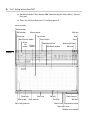
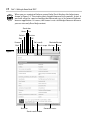
Figure 1-1 shows a typical Excel 2007 window, with the important parts labeled.
This terminology rears its ugly head throughout the book, so look at the figure
carefully.
Moving, resizing, and closing windows
When Excel and workbook windows are in a restored state (between a maximized
and minimized state, that is) you can use the resize handles to adjust the window
size to your liking. Move the mouse pointer to the area of the resize handle until
the pointer changes to a double-headed arrow, and then drag with the mouse.
You can move the window around the screen by dragging the title bars. See also
“Using the Mouse and Keyboard,” later in this part.
When the active workbook window is maximized, it shares a single Close button
with the Excel window. After you click the shared Close button, Excel closes the
active workbook.
Exiting Excel
Use any one of the following methods to close the Excel application:
Click the Close button on the Excel title bar if one or no workbook is open.
Click the Office button and then click the Exit Excel button.