1
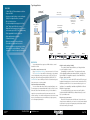
More good stuff. Standard connectors enable the use of ordinary PC cables for close connections of only a few feet. If you want more robust signaling and ease of use, we recommend our economical Control Station Cables. Use the on-screen menus to control who can access each server. Set a user's level of access to exclusive use, shared use, or video only. Buying Tips These products work with: • Computer Cables for Standard KVM Connections (EHN408) • Control Station Cables (EHN409) • PS/2 to USB Flash Cables (EHN428) • PS/2 to Sun Flash Cables (EHN429) • ServSwitch Wizard™ IP (ACR2004A) Questions? Contact ServSwitch Central™ at 724-746-5500 or by clicking on “Talk to a Tech.” Tech SPecs Controls — On-screen menus; Keyboard commands; Mouse-click functions: (2) push buttons for user and server selection; (1) DIP switch for firmware upgrade Distance (Maximum) — User ports to any directly attached user station or KVM switch: 32.8 ft. (10 m); Server ports to directly attached server or KVM switch: 100 ft. (30.4 m) using EHN408; ServSwitch Duo: User port #1 of the Duo or user port #1 or #3 of a Duo Extender: 656.1 ft. (200 m); Server ports to any directly attached CPU or KVM switch: 35 ft. (10.6 m) using EHN428–EHN429 Resolution (Maximum) — 1900 x 1280 at 75 Hz Serial Characteristics — Protocol: RS-232 async; Data rate: Up to 19.2 kbps; Data format: 8 data bits, no parity, 1 stop bit; Flow control: None (but DTR, DSR, CTS all held high) CE Approval — Yes Interface — Video: VGA (including SVGA, XGA, and VESA DDC support); DDC 1 and DDC 2 signaling; Keyboard and mouse: IBM PS/2 compatible; also supports PC/AT style keyboards or server keyboard ports and serial server mouse ports with adapters; Serial: Subset of TIA-574 (IBM PC DB9) pinout of TIA/EIA RS-232; USB and Sun with appropriate converter cables Connectors — Power: (2) barrel jacks; Serial: (1) DB9 F serial port for flash upgrade; User ports: (2), each consisting of: (1) HD15 F for monitor, (2) 6-pin mini DIN F for keyboard and mouse; Remote user ports: (1), consisting of: (1) RJ-45 for Duo Extender attachment; Server: Duo has (4), (8), (12), or (16), each consisting of: (1) HD15 F for video-port attachment, (2) 6-pin mini DIN F for keyboard and mouse Power — External 100–150; 240 VAC, 50–60 Hz, autosensing Size — KV6104SA-R2, KV6108SA-R2: 1.75"H (1U) x 17.3"W x 8.7"D (4.4 x 43.9 x 22.1 cm); KV6112FA-R2, KV6116FA-R2: 3.5"H (2U) x 17.3"W x 8.7"D (8.9 x 43.9 x 22.1 cm) 04/29/2010 #25371 724-746-5500 Technically Speaking Multi-User ServSwitch products vs. multipoint access ServSwitch products. A multi-user ServSwitch, such as the Matrix ServSwitch, enables two or more users to access different servers at the same time. So, for instance, one user can access “Server A” while another user accesses “Server B.” This is considered a “true two-channel” architecture because two users have independent access to CPUs. It should be pointed out that multiple users cannot access the same server at the same time. A multipoint access ServSwitch, such as the ServSwitch Duo, provides two access points for control stations but requires that both users view the same server at the same time. So, if one user is accessing “Server A” on his screen, the other user is also seeing “Server A” on his screen. If the second user switches to “Server B,“ the first user will also switch to “Server B.” Only one of these users is actually in control. The user in control stays in control until his workstation is inactive for a period of time (selectable). Then the other station can take control. A multipoint access ServSwitch is useful when simultaneous, independent access is not required—just the ability to access CPUs from more than one place. Technically Speaking On-screen menus. When the ServSwitch™ brand of KVM switches was first introduced, there were only two ways to switch: from frontpanel push buttons or by sending command sequences from the keyboard. While this was more convenient than having a separate keyboard, monitor, and mouse for each CPU, the operator still had to remember key combinations and which server was connected to which port—leading to many cryptic, scribbled notes attached to the switch and to the workstation. But with the advent of on-screen menus, an operator can use easy-to-read, pop-up menus to identify and select CPUs. It’s even possible to give each CPU a name that makes sense to you—names like “MIS Server,” “Accounting Server,” and so on. blackbox.com 3 of 4 BLACK BOX ®