1
Kindle User’s Guide
Chapter 3 Reading Kindle Documents
21
You can also display highlights and notes from people that you follow on
https://kindle.amazon.com. To turn off this option, select Settings from the Home screen
menu, tap Reading Options, and change the Public Notes setting.
Note that popular highlights and public notes are not available in all countries.
Bookmarks: Amazon’s Whispersync technology automatically saves your place in whatever
content you are reading. To add a bookmark, select Add a Bookmark from the menu or
simply tap in the upper right corner of a page. The page will appear folded down. To delete a
bookmark, tap in the upper right corner again.
Highlights, notes, and bookmarks are added to a file on the Home screen called My Clippings.
To manage them for a specific book, tap the Menu button and select View Notes & Marks.
These items are archived for you at Amazon so they won’t be lost.
X-Ray: The X-Ray feature lets you explore the structure of a book with a single tap. For
example, you can see all of the passages in a book that mention specific ideas, fictional
characters, historical figures, and places or topics that interest them. Note that X-Ray is not
available for all Kindle Books.
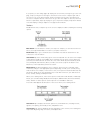
When you’re reading a book, tap the top of the screen to display the toolbars. The toolbar at
the bottom of the screen contains an X-Ray button. If X-Ray is not available for a book, the
Sync button displays instead of the X-Ray button. With a single tap, X-Ray will scan your entire
book for characters, historical figures, and terms. It can also provide detailed information from
Wikipedia and Shelfari, Amazon’s community-powered encyclopedia for book lovers. To find
out if a book has X-Ray, look for X-Ray Enabled in the Kindle Store description of the book.
X-Ray is not available in all countries.
Text-to-Speech
Your Kindle can read aloud your books, newspapers, magazines, blogs, and personal
documents using Text-to-Speech. This feature is available only for English content, and where
allowed by the rights holder.
To turn on Text-to-Speech, tap Menu from within the content, and then tap Turn On Text-toSpeech. While Text-to-Speech is playing, your Kindle Touch will turn the pages automatically
so you can follow along in the text. You can choose to hear your content spoken with a male
or female voice, and you can further optimise your listening experience by slowing down or
increasing the rate of speech. You can either listen through your Kindle’s speakers or plug
earphones into the headphone jack.
Viewing page numbers and progress
Because Kindle books can be read on devices with different screen sizes, locations identify
specific places in a book, just like a page number would for a print book. Location numbers
allow you to direct a friend to the exact same place in a Kindle book you are reading, and are
always displayed.
Many Kindle books also contain page numbers that correspond to the real page numbers in
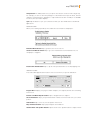
an actual print book. To view the page number of the book you’re reading, tap the top of the
screen to display the toolbars. The current location, page number, total number of pages, and
percentage of content read are displayed below the toolbar at the bottom of the screen. (Not
all Kindle books include page numbers.)