1
230
AShop V User Guide
to be his/her own email. They can even be sent to multiple email addresses if needed. They can include
an automatically generated gift certificate code which is used on the checkout page in a similar way to
how the per order discounts work, except that these codes will not give the same discount any number
of times, they only let the customer buy for a certain amount just the way a gift certificate works in a
physical store.
The cards can also include unlock keys if you have uploaded any to your product, which means that you
can sell software licenses or other types of PIN codes as gift cards. Your customers can select a
personal greeting message to add to the card.
E-card Fulfilment Option
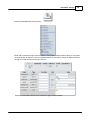
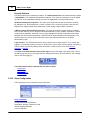
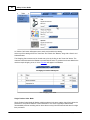
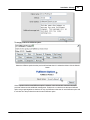
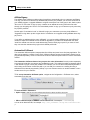
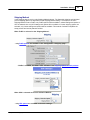
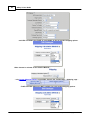
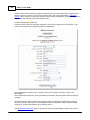
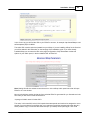
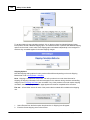
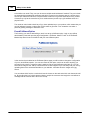
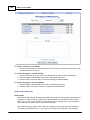
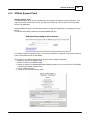
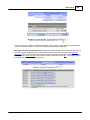
The first thing you need to start selling e-cards is to set up a fulfilment option. Login to your AShop
administration panel and open the page Configuration->Fulfilment. Select "E-card" in the Fulfilment
Method drop down list and click Add to add your new fulfilment option.
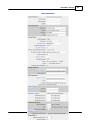
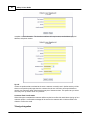
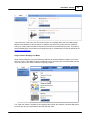
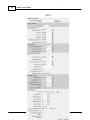
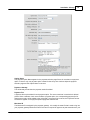
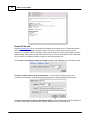
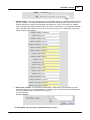
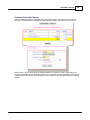
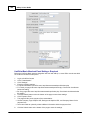
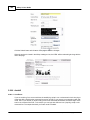
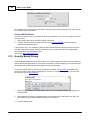
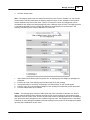
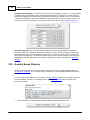
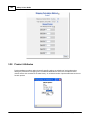
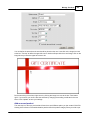
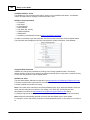
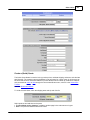
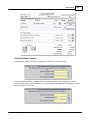
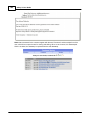
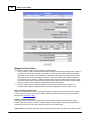
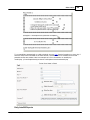
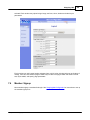
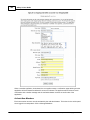
In the new box that is added to the Fulfilment Options page you will be able to change the configuration
of your e-card fulfilment option. You can set a name for the option, which can be set to anything you
want and is only used by yourself to make it easier to find the right fulfilment option later on. You can
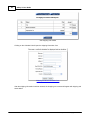
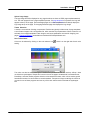
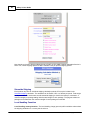
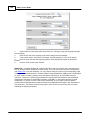
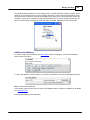
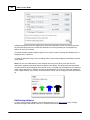
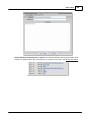
select which image to use. AShop comes with three e-card images but you can easily add your own by
uploading them to the admin/ecards folder on your website. Just make sure the images are in jpg
format.
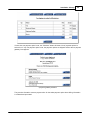
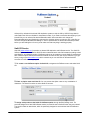
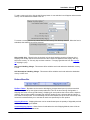
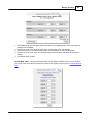
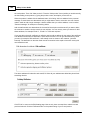
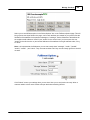
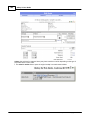
You can select which font the e-card should use for the text on the card and which color the text should
be. By checking the box "Include returned data in receipt" the customer who bought the card will see a
message that the card has been sent in the receipt.
AShop Software © Copyright 2002 - 2010