1
5 Set Up Computers and Software
Network Connection
Before Installation
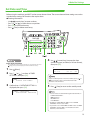
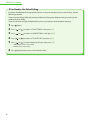
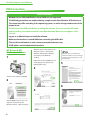
• The following procedures are explained using sample screens from Windows XP Professional.
• The screen may differ according to the operating system, as well as the type and version of the
printer driver.
• Log on as an Administrator to install the software.
• Click on the circled button on each screen to proceed to the next step.
• Make sure the machine is turned ON.
(See “Connect Power Cord and Turn On the Machine,” on p. 9.)
• Make sure the network cable is connected to the machine.
(See “Connect the LAN Cable,” on p. 17.)
• Make sure an IP address is assigned to the machine.
(See “Check IP Address Setting,” on p. 18.)
4
MF Drivers Installation
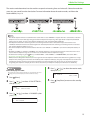
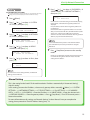
1
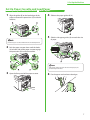
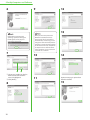
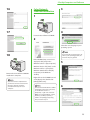
Insert the User Software CD-ROM.
2
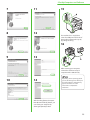
To install the software programs
individually, select [Custom
Installation], then follow the onscreen instructions.
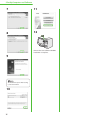
Windows Vista/7/Server 2008: click
[Start] on the Windows task bar →
[Computer].
Windows Server 2003: click [Start]
on the Windows task bar → [My
Computer].
Windows 2000: double-click [My
Computer] on the Windows
desktop.
5
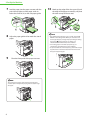
Right-click on the CD-ROM icon and
select [Open], then double-click
[MInst] ([MInst.exe]).
3
If the CD-ROM Setup screen is not
displayed, click [start] on the
Windows task bar → [My Computer].
23