1
Troubleshooting
This section gives troubleshooting tips in case of problems.
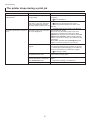
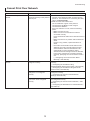
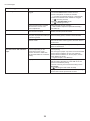
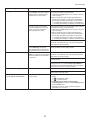
Paper Problems
Phenomenon
Cause
Corrective Action
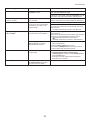
Roll paper cannot be inserted into
the paper feed slot
The roll paper is warped.
Straighten out curls and reload the roll.
If paper cannot be advanced from
Roll 2 (Lower), the Roll Unit
Cable is disconnected.
Connect the Roll Unit Cable firmly to the Roll Unit
Power Supply Inlet and the inlet on the roll unit.
Cannot load sheets
The paper source selection is
incorrect.
Press the Feeder Selection button to activate the Cut
Sheet lamp.
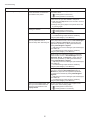
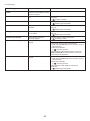
Paper is not cut straight
The paper is bent or curled at the
cut position.
Straighten out any curling by the edges of the paper.
Paper rises by the ends of the cut
position before it is cut.
Reload the paper correctly.
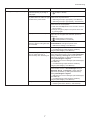
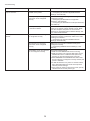
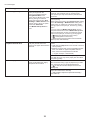
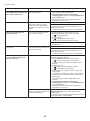
Paper is not cut
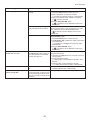
The Media Take-up Unit continues
rotating
In the printer driver, No or Print
Specify Yes in Auto Cut in the printer driver.
Cut Guideline is specified in Auto
Cut.
In MAIN MENU, Eject or Manual
is specified in Cutting Mode.
Specify Automatic in Cutting Mode in MAIN MENU.
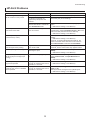
Rolls are not cut when you are
using the Media Take-up Unit.
Either execute Paper Cutting in the Control Panel or
lift the Release Lever and cut the roll with scissors.
(→"Removing Printed Documents from the Media
Take-up Unit (Optional)," User Manual)
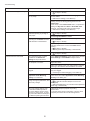
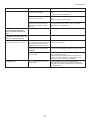
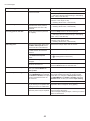
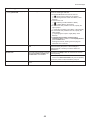
There is a foreign object in the
path of the Media Take-up
Sensor.
Remove the foreign object from the Media Take-up
Sensor path. Arrange the Basket Cloth and Basket
Rod so they do not interfere with the Media Take-up
Sensor.
The Media Take-up Sensor cord
is not connected to the Right
Media Take-up Unit correctly.
Reconnect the Media Take-up Sensor cord as
follows.
1. Turn the printer off.
2. Disconnect the Media Take-up Sensor cord from
the Right Media Take-up Unit and reconnect it
firmly, all the way in.
3. Turn the printer on.
(→"Using the Media Take-up Unit," User Manual)
If the Media Take-up Unit continues rotating, contact
your Canon dealer for assistance.
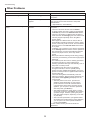
The size of clear film cannot be
detected
The Platen is soiled with ink or
other substances.
2
Open the Top Cover and clean the entire Platen.
(→ , If Paper is Soiled)