1
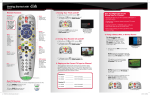
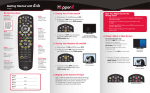
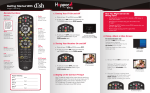
5. Changing Channels 6. Selecting a Favorites List to Display on Your Program Guide There are three ways to change channels on your receiver. n Dem HO For your convenience, three Favorites Lists have been pre-programmed: All Chan– Displays all DISH channels All Sub – Displays all channels you subscribe to All HD – Displays all HD channels available a. Press and release the GUIDE button until the Favorite List Options screen appears. - OR - Press and release the CHANNEL UP/DOWN buttons. DIS The TV channel changes. d an n Dem HO DIS b. d an - OR Use the Program Guide. a. Press and release the GUIDE button. n Dem HO Press and release the CHANNEL UP/ DOWN buttons to choose the Favorites List you would like to see, then press and release the SELECT button. The Program Guide appears. 7. Exiting On-Screen Menus n Dem HO d an DIS Press and release the CHANNEL UP/ DOWN or the PAGE UP/DOWN buttons to highlight the channel you want to watch. When you’re in an on-screen menu, it’s easy to exit the on-screen menu and return to the program you were watching. 110 FOOD The TV is on a menu screen. a. To exit an on-screen menu, press and release the VIEW LIVE TV button. n Dem HO 75% of all technical problems that an agent can help you with can be solved by following these five easy steps: 1. Make sure your DISH remote is in SAT mode. 2. Make sure your TV is on the correct input/channel. 3. Make sure you’re on the correct Favorites List. 4. Check for anything obstructing the signal to your satellite dish, such as tree branches, severe rain, or snow build-up. If it is safe to do so, remove the obstruction or wait for it to pass. 5. Reset your receiver by unplugging it from the wall for 10 seconds. Plug it back in and turn it back on. The Program Guide moves up or down. d an DIS Where to go for additional information: n Dem HO The menu screen is exited and a TV picture appears. The TV changes to the highlighted channel. TIP: The Cancel button on your DISH remote is another option for exiting one on-screen menu at a time. • mydish.com/support • Channel 101 • n Dem HO d an DIS Troubleshooting: d an DIS c. Press and release the SELECT button. Setting Closed Captioning: a. Press and release the MENU button and then select “Preferences.” b. Select “Closed Caption.” c. Select “Caption On/Off.” d. Select “CC is On.” e. Select “Done.” The Program Guide indicates which list you are on. If you are on the All Chan or All HD list, channels shown in red or green are not included in your subscription. b. 110 FOOD b. When you are done, press “Lock System” and set/use a password for any of the above locks to take effect. The Favorites List Options screen appears. Setting Parental Controls: a. Press and release the MENU button and then select “Locks.” • To lock all adult channels, select “Hide Adult.” • To lock all PPV channels, select “Lock PPV.” • To lock specific channels, select “Channel Locks.” • To lock a channel based on rating, select “Ratings Locks.” • Note that if you lock channels with an NR/AO rating, you may inadvertently lock certain news or other programs that are not rated. If this screen does not appear, please: - Press the MENU button. - Select “Preferences.” - Select “Favorites.” - Select “Guide Popup.” - Select “Done” and then go back to step 6a. The TV channel changes. PN 197457 DIS d an Type a channel number using the number buttons on the keypad. Additional Tips RETEN816 ViP QRG Update_FINAL.indd 2 8/16/12 2:26 PM