1
2. Recording a TV program
3. Watching a Recording
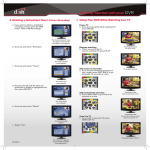
Record a program NOW
a. If you are watching TV and want to
begin recording that program, press
RECORD on your DISH remote.
a. If you would like to view a program that you previously recorded, press the DVR button
on your DISH remote.
The “REC” logo appears and
recording will begin. Press RECORD
again to adjust end time.
Record a program in the FUTURE
a. If you want to schedule a recording for a
program that takes place in the future,
press GUIDE.
The Program Guide appears.
The “DVR” screen appears.
b. Scroll through until the program you
would like to watch is highlighted,
and press SELECT.
c. Select “Start Over” to play your recording from the beginning.
OR
Press the PLAY button to resume watching.
A menu appears above the
DVR event.
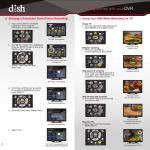
4. Deleting a Recorded Program
b. Scroll through the Guide until the
program that you want to record is
highlighted and then press SELECT.
a. If you want to delete a recorded program,
press the DVR button on your DISH remote
A drop down menu appears.
The “DVR” screen appears.
b. Scroll through until the program you
would like to delete is highlighted and
then press SELECT.
c.
Select “Record This” to instantly record
this show once with default options.
OR
Select “Record Series Timer” to
bring up the “Event Timer” screen.
A menu appears above
the event.
c. Scroll up and select “Delete.”
The “Event Timer” screen appears.
d.
Scroll through “Episodes” and select
the frequency you would like to use
to record the program and then
select “Create.”
A warning message appears.
FREQUENCY
New and Reruns Record all episodes.
Only New
Once
Records only new episodes.
Records the show only one time.
d. Select “Yes.”
The attention screen appears.
Then the Program Guide will
appear with a record icon next
to the program.
A confirmation message appears.