1
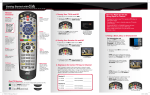
5. Changing Channels
6. Selecting a Favorites List
to Display on Your Program Guide
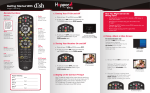
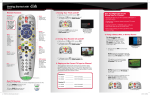
There are three ways to change
channels on your receiver.
Type a channel number using the
number buttons on the keypad.
OUTDOORS
302 HMS
3:30pm - 4:00pm
Time Left: 20min
Wed 10/12 3:40pm
G
Normal
LIVE
TV
- OR -
Press and release the
CHANNEL UP/DOWN buttons.
The TV channel changes.
SITE SEEING
301 SEA
3:30pm - 4:00pm
Time Left: 20min
Wed 10/12 3:40pm
G
Normal
LIVE
TV
- OR -
The TV channel changes.
The Favorites List drop down
menu appears.
b.
Press and release the CHANNEL UP/
DOWN buttons to choose the Favorites
List you would like to see, then press
and release the SELECT button.
The Program Guide indicates
which list you are on. If you
are on the All Channels
list, channels shown in red
are not included in
your subscription.
Use the Program Guide.
a. Press and release the GUIDE button.
7.Exiting On-Screen Menus
b. Press and release the CHANNEL UP/ The Program Guide appears.
DOWN or the PAGE UP/DOWN buttons
to highlight the channel you want to watch.
a. To exit an on-screen menu, press and
release the VIEW LIVE TV button.
c. Press and release the SELECT button.
When you’re in an on-screen menu, it’s
easy to exit the on-screen menu and
return to the program you were watching.
The TV is on a menu screen.
COUNTRY
303 TOW
Wed 10/12 3:40pm
G
Normal
Troubleshooting:
75% of all technical problems that an agent can help you with
can be solved by following these five easy steps:
1. Make sure your DISH remote is in SAT mode.
2. Make sure your TV is on the correct input.
3. Make sure you’re on the correct Favorites List.
4. Check for anything obstructing the signal to your satellite
dish, such as tree branches, severe rain, or snow build-up.
If it is safe to do so, remove the obstruction or wait for it
to pass.
5. Reset your receiver by unplugging it from the wall for 10
seconds. Plug it back in and turn it on.
Where to go for additional information:
The Program Guide
moves up or down.
3:30pm - 4:00pm
Time Left: 20min
Setting Parental Controls:
a. Press and release the MENU button.
b. Select “Settings” and then select “Parental Controls.”
c. If “Parental Controls” are “Off” then select “On.”
d. Under “Restrictions,” choose from the pre-set locks for a
high, medium, or low restriction level, or select “Custom” to
customize restrictions.
• To copy these settings to a Joey in a remote location:
a. Select “Copy Settings.”
b. Select location(s) to which settings are copied.
b. Select “Yes.”
e. Select “Save.”
f. Enter and confirm the 4-digit password.
Setting Closed Captioning:
a. Press and release the MENU button.
b. Select “Settings” and then select “Closed Captioning.”
c. Scroll to the Closed Captioning box and select “On.”
d. Select “Save.”
LIVE
TV
The menu screen is exited and
a TV picture appears.
TIP: The Cancel button on your DISH remote is another
option for exiting one on-screen menu at a time.
The TV changes to the highlighted channel.
• Press and release the MENU button and then select “Help.”
• Visit mydish.com/support.
• Go to Channel 101.
•
PN 185660
a. Press and release the GUIDE
button twice.
Additional Tips