1
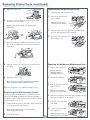
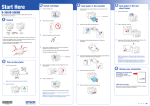
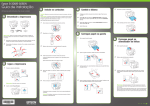
Loading Roll Paper
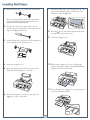
1
2
Slide the black paper stop off the end of the spindle.
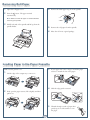
7
Insert the leading edge of the roll paper into the roll
paper feeder until the message on the LCD screen
changes to “Press the button”.
8
Press the button. The printer automatically feeds
the paper to the printing position.
Note: To use paper with a 2-inch core, remove the
gray adapters from the paper stops at each end.
See your User’s Guide for details.
Position the roll as shown, then slide it onto the
spindle. The gray end should be on the right with the
paper unwinding from the top.
9
3
Slide the black paper stop back onto the spindle and
insert it firmly into the end of the roll.
4
Open the roll paper cover.
5
Place the roll paper in the printer as shown. (The
black end of the spindle goes on the left.)
Close the roll paper cover.
10Slide out the output tray. Do not raise the paper
stopper. If the paper stopper is raised while printing,
the paper may not eject correctly.
11Set up the paper eject support for your paper type (see
your User’s Guide for details)
6
Make sure the printer is turned on, then press the
button on the control panel.
2
.