1
VS210/VS310/VS315W
Quick Setup
Before using the projector, make sure you read the safety instructions in the
online User’s Guide.
Note: These illustrations show the VS310/VS315W, but the instructions are the
same for the VS210 unless otherwise noted.
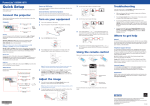
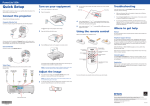
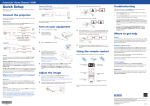
Turn on your equipment
1Turn on your computer or video source.
2Plug in the projector. The power light on the projector turns orange.
3VS310/VS315W: To reduce or enlarge the image, turn the zoom ring.
VS210: To reduce or enlarge the image, press the Tele (reduce) or Wide
(enlarge) buttons on the projector. You can also use the Zoom option in
the projector’s Settings menu. See the online User’s Guide for details.
Troubleshooting
If you see a blank screen or the No signal message after turning on your
computer or video device, check the following:
•
Make sure the power light on the projector is green and not flashing,
•
Press the Source Search button on the projector or the remote control
•
If you’re using a Windows laptop, press the function key on your
•
If you’re using a Mac
VS310
VS315W
Connect the projector
VS210
Choose from the following connections. See the sections below or the online
User’s Guide for details.
3Open the A/V Mute slide all the way.
Computer
4Turn the focus ring to sharpen the image.
VS310
VS315W
USB cable
and the A/V Mute slide is open.
to switch to the correct image source, if necessary.
keyboard that lets you display on an external monitor. It may be labeled
CRT/LCD or have an icon such as
. You may have to hold down the
Fn key while pressing it (such as Fn + F7). Wait a moment for the display
to appear.
laptop, open System Preferences and select
Displays. Select the VGA Display or Color LCD option if necessary,
then click the Arrange or Arrangement tab, and select the Mirror
Displays check box.
®
VGA cable
Where to get help
VS210
USB Port
Connect the square end of a USB cable to the projector’s
USB TypeB
(square) port. Connect the flat end of the cable to any USB port on your
computer.
4Press the
power button on the projector or remote control. The
projector beeps, the power light flashes green, and then stays on.
Windows® 2000 SP4 or later: After turning on the projector, follow
the on-screen instructions to install the Epson USB Display software
(EMP_UDSE.EXE; only on first connection). If the software screen does not
display automatically, open My Computer or Computer, then double-click
EPSON_PJ_UD.
Mac OS® X 10.5.1 or higher: After turning on the projector, the setup folder
for USB Display appears in the Finder. Double-click USB Display Installer and
follow the on-screen instructions to install the Epson USB Display software
(only on first connection).
Note: If you have problems installing the USB Display software, make sure the
USB Type B setting in the projector’s Extended menu is set to USB Display.
See the online User’s Guide for instructions.
Monitor Port
Connect one end of a VGA cable to the projector’s Computer port, and the
other end to your computer’s
monitor port. If you are using a laptop,
switch it to external display (see “Troubleshooting”). You can also connect an
audio cable.
Video Device
Connect up to 3 video devices and use the remote control to switch
between them.
Audio cable
S-Video cable
Manual
5If your image looks like
or
, you’ve placed the projector off to
one side of the screen at an angle. Place it directly in front of the center
of the screen, facing the screen squarely.
6Your projector automatically adjusts images that look like
but if necessary you can press the
to correct it.
Note: To shut down the projector, press the
power button twice, then
unplug it. You don’t have to wait for the projector to cool down.
or
or
,
button on the projector
Using the remote control
Make sure the batteries are installed as shown (two AA batteries).
5
The default language of the menu system is English. To select another
language, press the Menu button on the remote control. Select
Extended and press Enter. Select Language and press Enter. Select
your language and press Enter. Press the Menu button to exit the menu
system.
Adjust the image
Telephone Support Services
To use the Epson PrivateLine® Support service, call (800) 637-7661 and enter
the PIN on the Epson PrivateLine Support card included with your projector.
This service is available 6 am to 6 pm, Pacific Time, Monday through Friday, for
the duration of your warranty period. You may also speak with a projector
support specialist by dialing:
US: (562) 276-4394, 6 am to 8 pm, Pacific Time, Monday through Friday, and 7
am to 4 pm, Pacific Time, Saturday
Canada: (905) 709-3839, 6
am
to 8
pm,
Pacific Time, Monday through Friday
Days and hours of support are subject to change without notice. Toll or long
distance charges may apply.
Turn projector
on and off
Choose which
source to display
1If you don’t see an image, press the Source Search button on the
projector or remote control to select the image source.
Note: If you still see a blank screen or have other display problems, see the
troubleshooting tips on the right.
2To raise the image, press the foot release button and lift the front of the
For more information about using the projector, click the icon on your desktop
to access the online User’s Guide (requires an Internet connection). If you don’t
have a User’s Guide icon, you can install it from the projector CD or go to the
Epson website, as described below.
Internet Support
Visit www.epson.com/support (US) or www.epson.ca/support (Canada)
for solutions to common problems. You can download utilities and
documentation, get FAQs and troubleshooting advice, or e-mail Epson.
Registration
Access projector
menus
projector. Release the button to lock the foot in position.
Navigate projector
menus
Register today to get product updates, special promotions and customer-only
offers. You can use the CD included with your projector, or register online at
www.epson.com/webreg (website available only in English).
Component video to VGA cable
RCA video cable (composite video)
Turn off projector
display
Get solutions to
common problems
For more information on using the remote control, see the online User’s
Guide.
Epson is a registered trademark and Epson Exceed Your Vision is a registered logomark of Seiko Epson
Corporation. PrivateLine is a registered trademark of Epson America, Inc.
General Notice: Other product names used herein are for identification purposes only and may be trademarks of
their respective owners. Epson disclaims any and all rights in those marks.
This information is subject to change without notice.
© 2011 Epson America, Inc. 5/11
Printed in XXXXXX
CPD-34827