1
7
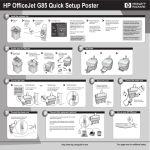
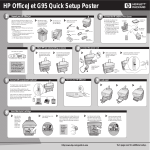
Insert color print cartridge
a
Remove the color print cartridge (wider
one) from its packaging and, being careful
to touch only the black plastic, gently
remove both the green pull tab and the
blue tape covering the nozzles.
b
c
Push the color print cartridge firmly down into
the slot on the left. Lower the left print-cartridge
latch down onto the top of the cartridge, and
push down until the latch locks firmly into place.
Pull the handle down to close
the door.
CAUTION:
Do not touch
or remove
the goldcolored
contacts.
8
9
Select your language
Look at your display for the language list.
Enter the code for your language, and then
confirm your selection.
Keypad
Print an alignment page
Make sure paper is loaded in your
HP OfficeJet.
ENTER
The message “Press ENTER to
Align Cartridges” appears in the
display. Press the ENTER key to
enable the HP OfficeJet to perform
the alignment. After a page prints,
the alignment is complete.
Display
Look at the alignment page for
green check marks, and then
recycle or discard the page.
10
Configure your software
a
b
Turn on your computer. Windows software
automatically configures your HP OfficeJet.
Note to USB Users: These screens may
have already appeared on your PC while you
were setting up.
A series of Microsoft “New Hardware Found”
messages appear. The configuration may
take a few moments.
Click OK to complete the software setup.
If this screen does not appear, see
Chapter 1, “Additional Setup Information”
in the Basic Guide.
Note to Windows NT 4 Users: The message,
"HP OfficeJet G Series Configuration done"
appears instead. See step b.
If you need more help, see Chapter 1,
"Additional Setup Information" in the
Basic Guide.
.
11
Congratulations! You can now print, copy, and scan with your new HP OfficeJet.
Additional
software
programs may
be available
with your HP
OfficeJet.
a
To install the programs, do the
following:
Remove and reinsert
your HP OfficeJet
installation CD
in your
CD-ROM
drive.
b
12
The HP OfficeJet software installation
menu appears. The Productivity Section
lists additional programs you can install.
Click the program name and follow the
onscreen installation instructions.
Get to know the front panel
Here are some
features of your
new HP OfficeJet:
Use the ENTER key to make selections.
Use the Scan To key to select a specific PC or
program destination.
Use the Start Scan key after you make a selection
from the Scan To list.
Use the Special Features key to access copying
features, such as Fit to Page, Poster and Clone.
Select one of these keys to begin copying.
Use the Keypad to enter the number of copies or
change the reduce/enlarge percentage.
*C6736-90116*
*C6736-90116*
C6736-90116
Copyright Hewlett-Packard Company 2000.
Printed in the USA, Germany, or Singapore.
HP OfficeJet G55 Quick Setup Poster, Page 2
For troubleshooting, refer to the HP OfficeJet G Series: Your Basic Guide and
the HP OfficeJet G Series: Onscreen Guide. Save this sheet for future reference.