1
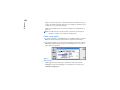
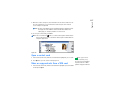
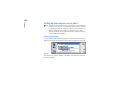
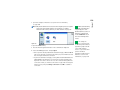
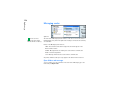
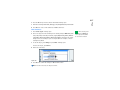
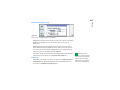
3 Open the target album.
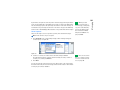
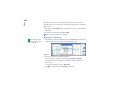
4 Press the Menu key and select Edit > Paste.
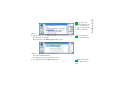
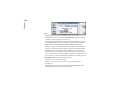
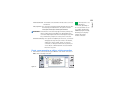
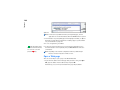
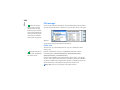
5 If the target album already has an image or images with the same name, a
confirmation note appears asking you if you wish to replace the existing image.
Choose from the following options:
Replace - The existing image is replaced with the image you are pasting.
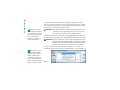
Tip: You can select
several images with the
Space key. You can also use
the Edit menu commands
and the corresponding
shortcuts (Ctrl+c, Ctrl+x,
Ctrl+v) to move or copy
images.
Replace all - All existing images are replaced with the same name.
Skip - Skips the image and continues the operation.
Cancel - Cancels the whole paste operation.
Create new images from originals
You can choose parts of an opened image, save them as separate images, and
reuse them.
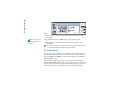
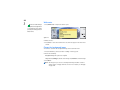
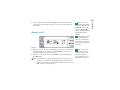
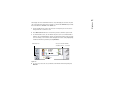
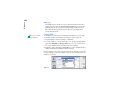
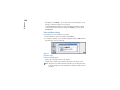
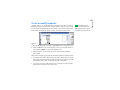
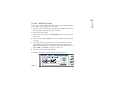
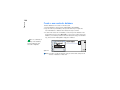
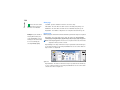
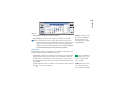
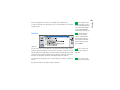
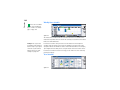
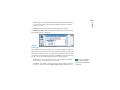
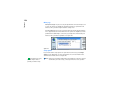
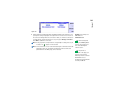
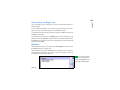
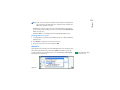
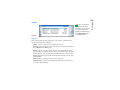
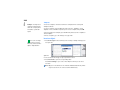
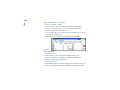
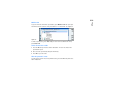
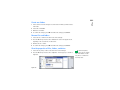
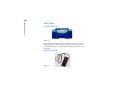
1 Open an image. Press the Menu key and select Edit > Select image range.
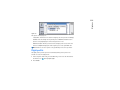
The selection frame is now visible on the image.
2 To move the selection frame, use the Arrows key.
To change the size of the selection frame, press down the Ctrl key and use the
Arrows key.
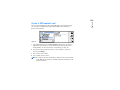
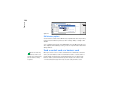
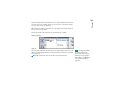
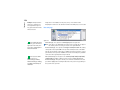
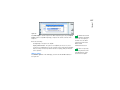
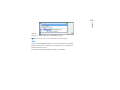
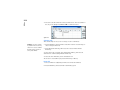
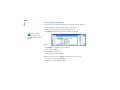
3 To save the frame as an image, press the Menu key and select File > Save as….
Select Selected range.
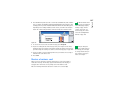
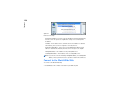
4 Select the folder you wish to save in, give a name for the new image file, and
press OK.
Tip: To rename albums
or images, select File >
Rename…., define a name,
and press OK. The file
extension cannot be
changed.
Extras
243
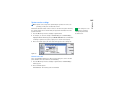
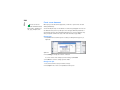
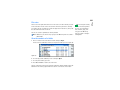
2 Press the Menu key and first select Edit > Copy or Cut.