1
4
5
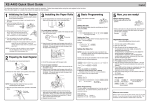
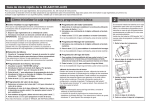
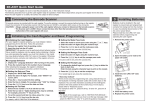
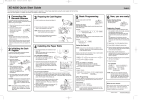
Basic Programming
Set the mode switch to the PGM position.
Before Starting Entries
REG
OPX/Z
OFF
MGR
VOID
Now, you are ready!
• Set the mode switch to the REG position.
X1/Z1
X2/Z2
PGM
VOID
PGM
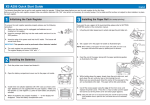
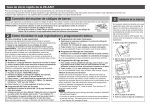
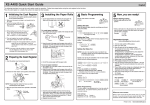
Setting the Date
Enter the date in 8 digits using the month-day-year format. Then press
Example: 02262010
Date (February 26, 2010)
REG
OPX/Z
OFF
s.
MGR
X1/Z1
X2/Z2
• Enter a clerk code (1 to 40) and press L. (Once the clerk code is entered, re-entry of the
clerk code is not needed until the clerk is changed.)
s
Example: 1L
Clerk code
Setting the Time
Enter the time in 4 digits (“hhmm” format) using the 24 hour system. Then press s.
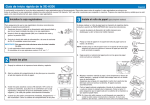
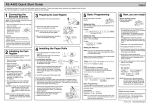
Registration Example (when selling department items by cash)
Example: 1430 s
Time (2:30 p.m.)
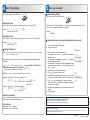
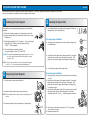
1. Turn the mode switch to REG position.
2. Enter your clerk code.
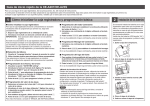
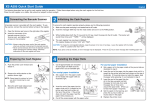
Setting Tax Rates (%)
Clerk code
NOTE: If you are in an area that uses a tax table for tax calculation, please refer to the programming
section in the instruction manual.
Specify a tax rate (%) for calculation of tax on each taxable subtotal using the following
sequence:
s ➔ 9 ➔ @ ➔ Tax number (1 to 4) ➔ @ ➔ Tax rate (0.0000% to 100.0000%) ➔ @
➔ Minimum taxable amount (0.01 to 999.99) ➔ s ➔ A
(Smallest amount for which tax must be collected.)
NOTE: Up to 4 types of tax are programmable for Tax 1 through Tax 4.
Example1: Set state tax 6.25% with tax exempt as 12¢
s 9@ 1@ 6P25@ 12 s A
Tax 1
Tax rate (6.25%) Min. taxable
amount ($0.12)
Example2: Set state tax 4% with tax exempt as 0¢
s 9@ 1@ 4 s A
Tax 1
1L
Tax rate (4%)
3. Enter the price for the first department item.
For example for 5.00, enter 5:, and press the appropriate 5:¡
department key.
Price and dept. 1
For department 21 to department 40, press D first before 825D™
pressing the department key.
Price and dept. 22
For department 41 and above, enter the department number
using numeric keys, and press d, then enter the price and
press d again.
4. Repeat step 3 for all the department items.
5. Press s to display the amount due.
s
6. Enter the amount received from the customer. (You can omit 2:0
this step if the amount tendered is the same as the subtotal.) Amount tendered
7. Press A, and the change due is displayed (when the
A
amount received was not entered, total amount is displayed)
and the drawer is opened.
8. Tear off the receipt and give it to the customer with his or her
change.
9. Close the drawer.
Other Programming
The cash register is pre-programmed so it can be used with minimal set-up. For optional features, please refer to the instruction manual.
Initial settings:
Department 1 to 10: Taxable 1
Department 11 to 99: Non-taxable
How to download Customer Support Tool:
Customer Support Tool can be downloaded from the Sharp web site.
Please visit the Sharp web site: http://www.sharpusa.com/registersoftware
When an error occurs:
l
When an error occurs with an alarm sound, press
to clear the error. If you do not clear the error, press
transaction will be finalized in subtotal void or cash sale.
Printed in China
G twice.
The
(TCADH2562RCZZ) 1