1
4 Open evaluation
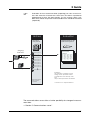
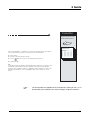
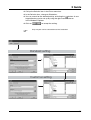
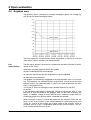
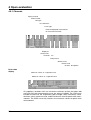
h In the dialog window which follows, the path can be selected and the file
name entered, under which the data will be stored in Excel format.
A
The data file cannot be stored if the data file already exists and is open at
the same time in Excel.
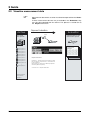
After successful storage the data file can be opened using Excel.
Further processing with
Excel
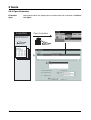
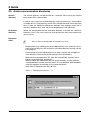
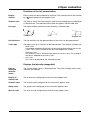
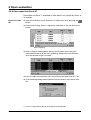
h Start Excel and open the previously stored data file. Normally, an empty
worksheet (table 1) will be opened. Change to the required worksheet
(e.g. Group1_1).
H
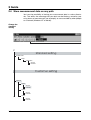
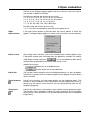
At the beginning of the data file is a 8-digit header followed by the
measurement data. The total length (header and data) can not exceed 65536 rows. If there are more measurement data than this in
the PCA evaluation program, they are automatically divided into a
number of tables.
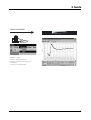
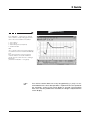
If the data in Excel is to be graphically displayed or calculated, it
must first be converted.
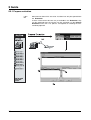
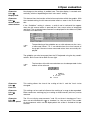
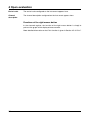
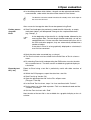
h Mark the data to be converted (e.g. a column).
h The Text Assistant must be started via the Excel Data ➔ Text in columns...
menu.
h By selecting Fixed width and operating the END button, transfer the data
into a number format. The data are now available for graphical display or
calculation.
Export by text
file (*.txt)
Export to Excel using a text file is particularly useful with older versions of
Excel.
h Within the PCA program, export the data into a text file.
h Start Excel (e.g. Version 5.0).
h Open the generated text file via the File ➔ Open menu
(File type = Text file).
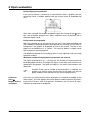
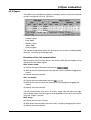
h In the Excel Text Assistant, steps 1 to 3 are confirmed with “Further”.
h During steps 2 to 3 the field-separator “Tab” must be deactivated and the
“Comma” activated.
h Quit the Text Assistant with “End”.
Now the data of the text file is also available for a graphical display or for calculation.
47