1
STEP 4
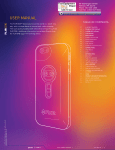
Once an image is displayed tap the color palette icon1 in the lower
right to change how the image is displayed. Select one of the displayed
color or grayscale palettes.
1
The camera is in photo mode as indicated just below the image. Tap
PALETTE SCREEN
2
the round blue icon at the bottom of the screen to save a photo
2
image. On the display, swipe left or right to select a different mode
(Video, Pano, or Time-Lapse). These modes are described in a later
section of the manual.
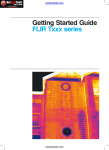
The image that displays in the app is a unique combination of a
thermal image and a daylight image through a unique process called
MSX. The FLIR ONE thermal camera can produce an image even in
total darkness. When visible light is available, the FLIR ONE daylight
camera is used to enhance the detail of the FLIR ONE thermal camera.
For close up scenes, it is possible to optimize the way the daylight
and thermal images are blended. Tap and hold the image to bring
up a slider control at the bottom of the image. Moving the slider left
or right changes the way the visible and thermal images are aligned.
Optimizing the image is described in more detail in section XYZ.
Refer to the following sections in this guide for additional information
on using the FLIR ONE .
More detailed information is also available in the Help & Support feature
within the FLIR ONE  app. The FLIR ONE Reference Manual is available
from the FLIR web site: http://www.flir.com/flirone
WARNING
The FLIR ONE is not waterproof.
Use caution if the FLIR ONE is
used to observe very hot objects
like fire or molten metal.
TM
USER GUIDE 3