1
311 • Administering Maple T.A.
Instructor Password
• Change your password often.
• Never allow a student to see it. The instructor password grants access to all the grades in your class, and enables you to change
grades. Use caution when entering it in front of students.
• Your password is stored on the server in plain text. This means that the system administrator can read it. Therefore, do not use a
password that cannot be disclosed to a third party.
• When you log in, the time of your last login is given under your user profile. Check this every time to determine if there are any
unaccounted logins. Access your profile by clicking the Your Name (Role) link next to Logout.
See Also:
Changing Your Password (page 310)
Student Account Management
1. Some students will log in to an assignment once or twice and click Submit Assignment without attempting any questions, to make
a printout of the feedback. Using this feedback, they complete the assignment. There are three main solutions:
• Restrict the number of retakes allowed. For details, see Setting the Maximum Number of Attempts (page 51).
• Set the feedback level to score only rather than giving out answers or solutions. (This approach penalizes the good students,
too). For details, see Configuring Feedback Options (page 49).
• If you are writing and using your own questions, you can edit the Feedback field and mask the correct answer. For details, see
Configuring Feedback Options (page 49).
2. Consider locking your class after an initial sign-up period to prevent registration of students that are not in the class and the creation
of fake accounts. You can also delete unwanted accounts. For details, see Locking and Unlocking Class Registration (page 11) and
Deleting Student Records (page 310).
Proctored Exams
• Proctors can authorize students to take and grade assignments of the type Proctored Exam. This usually depends on class size
and the number of teaching assistants available to act as proctors. However, this double-checking approach keeps the testing
environment controlled.
• Proctors can use the Proctor Tools utility to avoid entering their password in front of students.
For more information, see Proctored Exams (page 42).
Proctored Browser
• The Proctored Browser is a full-screen mode that blocks the student from accessing external web sites or other programs on the
computer while taking a Proctored Exam assignment. When used in a monitored setting, such as an on-campus computer lab where
the use of other devices or materials is controlled, it prevents students from accessing external aids during the assignment.
• By pairing the assignment type Proctored Exam with the use of the Proctored Browser, you can utilize both human monitors and a
structured computer setting to maintain additional control over the testing environment.
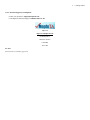
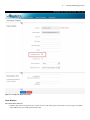
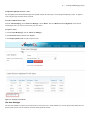
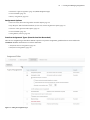
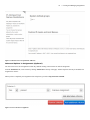
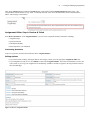
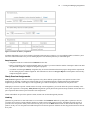
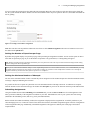
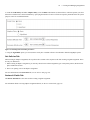
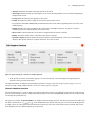
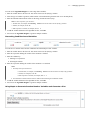
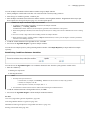
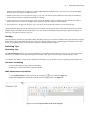
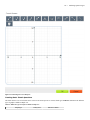
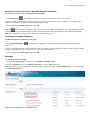
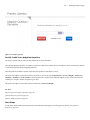
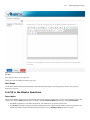
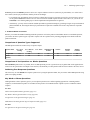
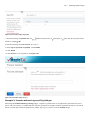
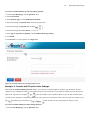
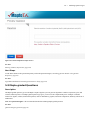
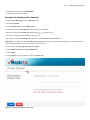
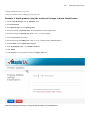
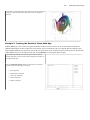
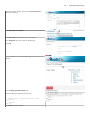
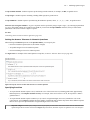
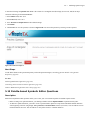
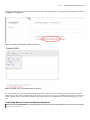
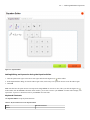
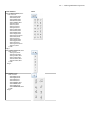
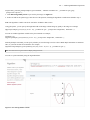
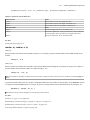
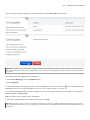
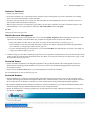
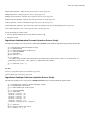
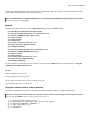
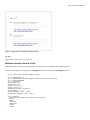
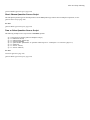
• Initially, the student receives a message saying that they are entering full-screen mode, which they must authorize to proceed. For
more details, see Figure 8.1.
Figure 8.1: Authorization for Proctored Browser