1
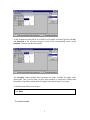
Help) by clicking the Help button displayed in the window you are currently working
with. You should use this system freely.
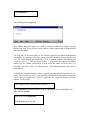
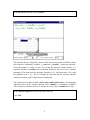
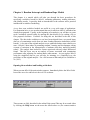
The buttons on the tool bar relate to model estimation and control, and we shall
describe these in detail later. Below the tool bar is a blank workspace into which you
will open windows using the Window menu These windows form the rest of the
‘graphical user interface’ which you use to specify tasks to MLwiN. Below the
workspace is the status bar, which monitors the progress of the iterative estimation
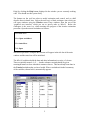
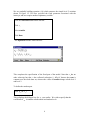
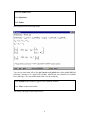
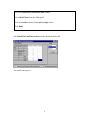
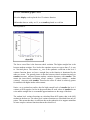
procedure. Open the tutorial worksheet as follows:
Select File menu
Select Open worksheet
Select tutorial.ws
Click Open
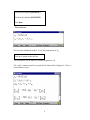
When this operation is complete the filename will appear in the title bar of the main
window and the status bar will be initialised.
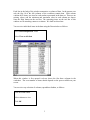
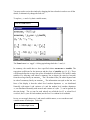
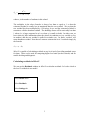
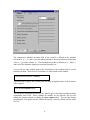
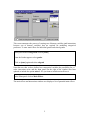
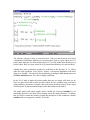
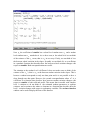
The MLwiN worksheet holds the data and other information in a series of columns.
These are initially named c1, c2, …,but the columns can (and should) be given
meaningful names to show what their contents relate to. This has already been done in
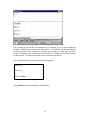
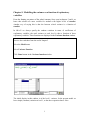
the Tutorial worksheet that you have loaded. When a worksheetis loaded a summary
of the variables, shown below, automatically appears.
2