1
BMGTOOLS
PAGE
CheckBMG User Manual
21/35
3.5. Exiting the application
To close the application, you have to select the File>Quit menu.
If the grid file has been modified, you will be proposed to save the grid file.
3.6. Manipulating the map
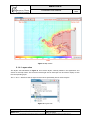
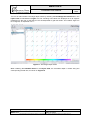
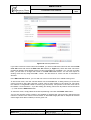
The navigation map tool bar (cf. Figure 20) allows you to manipulate the map. The initial zoom button
on the left of the tool bar resets the zoom level to the initial one when pressed.
The Move button lets you move the map.
The Zoom in button allows you to zoom in the map by either clicking a place on the map or selecting a
zoom zone with a mouse drag and drop action on the map.
The Zoom out button allows you to zoom out the map by either clicking a place on the map or
selecting a zoom zone with a mouse drag and drop action on the map.
You can as well use the mouse wheel to zoom in or out in the map.
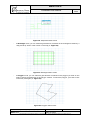
Figure 20: Navigation map tool bar
3.7. Editing grid points
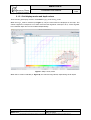
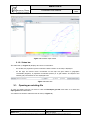
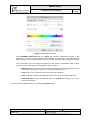
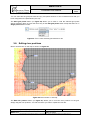
The Edit grid points button (cf. Figure 21) allows you to edit grid points.
Figure 21: New grid button
Once selected, you can choose the edition mode in a drop-down menu:
-
Single point mode lets you modify the grid elements one by one;
-
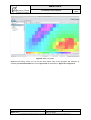
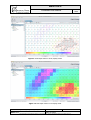
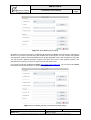
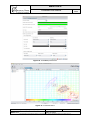
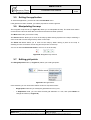
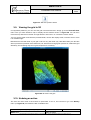
In Sequential mode, you can select several grid elements in a row, then press Return to
change the values (cf. Figure 22);
Reference: IFR_BMGV3_D1B_Check_User_Manual
Version: 3
Status: Final
Date: 16/12/2010
Revision: 0
This document is the property of Artenum. It cannot be used, copied or distributed without prior written approval.