1
OSD Menu Overview
On Screen Display (OSD) Menu Introduction
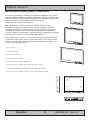
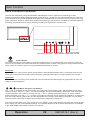
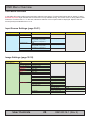
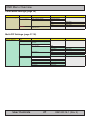
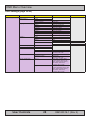
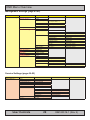
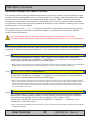
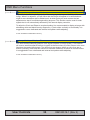
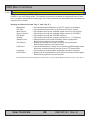
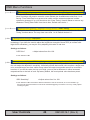
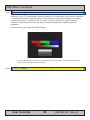
The OSD menu consists of main menus and submenus which is very easy to navigate through. All functions are
explained in-depth later in this user manual. You should prior to using the OSD menu and functions, be sure to
familiarize yourself with how to physically access the menu, how to navigate up/down/left/right, how to modify values,
exiting menus and more.
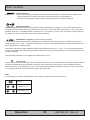
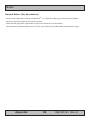
Please note: Factory default illustrations only! Available functions, icons and text may deviate slightly from actual OSD menu on
your product due to different OSD software configurations and customized solutions.
OSD Keycode / OSD Lock Mode
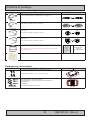
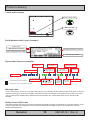
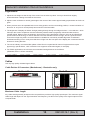
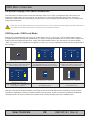
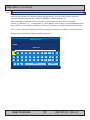
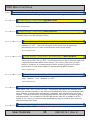
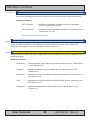
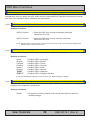
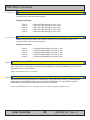
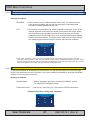
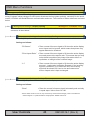
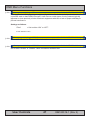
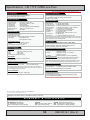
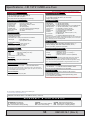
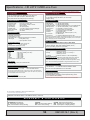
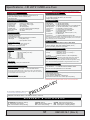
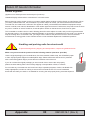
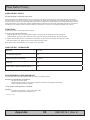
During use, a small requester may pop-up on screen asking you for a “Key Code”. This is a safety feature (due to
ECDIS Compliance) that might be predefined in your setup. To quickly understand how to enter a code, navigate and
finally access the underlying main menu, simply follow the illustration below. The “Key Code” is by factory default
“321”. If the “Key Code” requester do not appear on screen, you can skip reading this section for now and proceed to
the next page.
►
►
►
►
►
►
0
3
0
0
►
►
►
►
►
0
►
►
►
0
►
0
►
0
►
Please enter key code
to access menu
0
Please enter key code
to access menu
►
Please enter key code
to access menu
Active Display Area + Requester
Close-up of Requester
Close-up of Requester
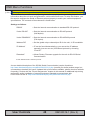
1: Typical position of requester on screen.
Yellow box indicate number position, default
loaction is always on first number.
2: Enter first number (from 0 to 9).
Use “Navigation/Hot Keys” touch buttons to
increase/decrease. Number change in real time.
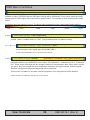
3: Now touch menu button to store first
number and proceed to second number.
Yellow bar will move its position too.
Simplified
Input Source
Settings
►
►
►
Input Source Settings
Image
Settings
Image Settings
Color Mode Settings
2
1
Multi-PIP
Settings
OSD Misc
Management Settings
Exit
►
Main Source
►
Analog VGA 2
Secondary Source
CVBS 2
►
Color Mode
Settings
Multi-PIP Settings
3
Input Source Settings
Exit Menu
Exit
►
Please enter key code
to access menu
Auto Source
Disable
OSD
Miscellaneous
Service
Management
Settings
►
►
►
Service
Settings
Close-up of Requester
Active Display Area + OSD Menu
Active Display Area + OSD Menu
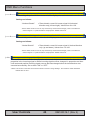
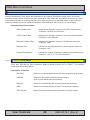
4: Repeat step 2 and 3, until
“Key Code” reads “3 2 1” and finally touch
menu button to continue.
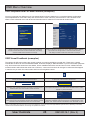
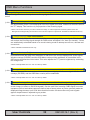
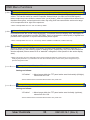
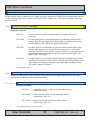
5: The OSD menu appear in “Simplified” mode
(if confgured to do so)
6: The OSD menu appear in “Full” mode
(if confgured to do so)
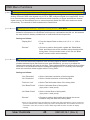
After the code was successfully entered you will gain access to the OSD Menu and a multitude of functions will be
available for adjusting or reviewing. Please proceed to the next page, where you will learn the differences between
“Simplified” and “Full” menu modes and a complete map of all the underlying functions available within.
User Controls
IND100064-39
24
INB100519-1 (Rev 2)