1
Using the Sort Utility
1.
Retrieve your Product Data File from your printer. Refer to the System Administrator guide
on our web site for more information.
2.
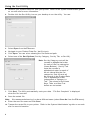
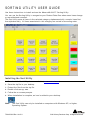
Double click the Sort Utility icon on your desktop to run the utility. You see:
3.
Select Open from the File menu.
4.
Navigate to your Product Data file (.dat file type).
5.
Click Open. You see a box showing the file name and path.
6.
Select one of the Sort Options (Sort by Category, Sort by Tab, or Sort All).
Note: Sort by Category sorts all the
records in alphabetical order
for each of the five categories
(Home Buttons). Sort by Tab
sorts the records in
alphabetical order for each of
the six tabs within the five
categories. Sort All sorts all
the records in the Product Data
File in alphabetical order,
independent of Category or
Tab. The values for the Home
Keys, Tabs, and Use First
button are not sorted.
7.
Click Sort. The Utility automatically sorts your data. “File Sort Complete” is displayed
when the file is sorted.
8.
Save the sorted file.
Note:
9.
We recommended saving it under a different name (select Save As from the File menu).
Enter the new file name and click Save.
10. Transer the sorted file to your printer. Refer to the System Administrator’s guide on our web
site for more information.
2