1
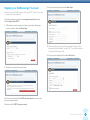
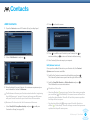
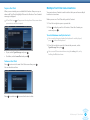
Contact subscription
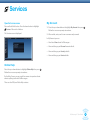
Make a video call
You can also add a Contact by giving your details to a friend and when
they invite you to be their buddy, add them to your Contacts using
Contact Subscription.
Slot a camera into the USB connector
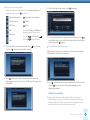
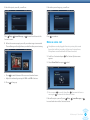
When your friend calls:
on top of your PSP™.
For best sound quality, we recommend a PSP-2000
compatible headset.
Headphones can be plugged in for extra privacy but cannot
be used in isolation, to make a call you need a microphone.
Microphones are included with Go!Cam or headsets.
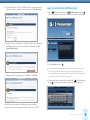
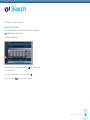
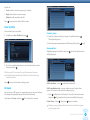
1 Scroll to a Contact and press
appears.
Press
to add the caller to your Contacts list.
Press
to decline.
Press
to block the Contact.
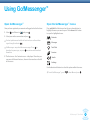
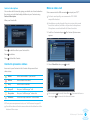
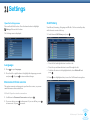
Contacts presence status
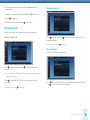
2 Select Video Chat then press
. The Contact Options menu
to dial.
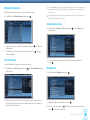
Icons next to your Contacts in the Contacts list represent their
online status.
Online
Online and available – you can call
Offline
Not available to be called
Busy
Online but not available
Busy call
Busy on a Go!Messenger™ call
Busy video
Busy on a Go!Messenger™ video chat
Unknown
Status currently unknown – not available
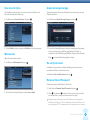
You can press to cancel, then either if you want to leave a
message or to return to the Contacts screen.
To set your own presence status, see ‘Set Presence’ on page 24.
You will see when a Contact comes online via the ticker bar at the
bottom of the screen.
Go!Messenger™ User Guide
12