1
CryptoMailer User Guide - 21 / 33
Note
CryptoMailer does not encrypt complete directories.
3.6.3
Temporary decryption (Open)
When selecting the "Open" button, the file selected in the file list is immediately decrypted and opened (similar to doubleclicking a file in Explorer).
Note
The file being opened temporarily for viewing its contents will be stored in a temporary Windows directory. In order not to
leave any unencrypted information on the harddrive, CryptoMailer tries to erase the temporary file asap. Therefore,
simple text files (.txt extension) are deleted right after decrypting and displaying. A .doc (Word) document can only be
erased after Word was closed. Therefore, CryptoMailer can not be closed as long as there are open documents being
viewed by the user.:
3.6.4
Decrypt locally
3.6.5
Replying to an encrypted mail
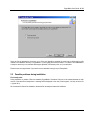
By clicking the "Decrypt" button, all files contained in the attached files list (as well as any text contained in the message
window) are decrypted and stored in
- in the same directory as the encrypted file,
- in a directory to be selected by the user in case of an encrypted file received by mail.
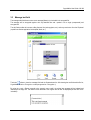
When an encrypted file is received by e-mail, the "Reply" button is activated.
The user may then reply directly, using the same Passphrase that had been used to decrypt the message. Naturally, the
user may select a different Passphrase for the reply mail.
After clicking the "Reply" button, the Message editing Window contains the original message text indented with "> " and
the name(s) of the file(s) attached to the original mail.
© Sistech 1999 - 2003