1
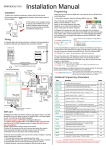
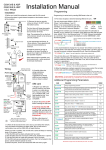
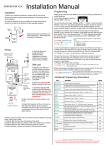
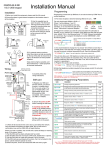
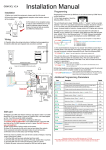
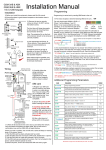
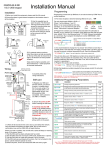
Keypad Programming (only ABK models)
The amber LED indicates standby mode (flashing), or programming
mode (ON).
Green LED indicates output 1 active.
Red LED indicates output 2 active.
Enter Programming mode
0
0
0
0
The unit is now in programming mode. Amber LED
will remain ON. 0000 is default programmers code.
Note: Pressing * again will exit programming mode.
*
Choosing single user mode or multi user
For most installations, it is sufficient to add a single keypad code for all
users. However, you can program up to 99 codes for relay 1 and 10
codes for relay 2. To do this, you need to first put the unit into multi
mode.
8
9
0
0
#
Set to SINGLE USER mode and refresh system.
8
9
0
1
#
Set to MULTI USER mode and refresh system.
Programming User codes for SINGLE USER mode
0
?
?
?
?
#
1
?
?
?
?
#
Enter user code for relay 1.
2
?
?
?
?
#
Enter user code for relay 2.
Enter NEW MASTER programming code.
Programming User codes for MULTI USER mode
0
?
?
?
?
#
1
?
?
?
?
?
User number 00-99
2
?
?
User number 0-9
?
Enter NEW MASTER programming code.
(4-8 digits for all multi codes!)
Enter up to 100 user codes for relay
output 1
?
#
#
Enter up to 10 user codes for relay
output 2
Code 4-8 digits
?
?
Code 4-8 digits
Programming Relay output modes
4
0
?
?
?
#
Output 1 in momentary mode. ??? Can be 1-3
digits, 1-999 seconds
4
1
?
?
?
#
Output 1 in latching or toggle mode.
5
0
?
?
?
#
Output 2 in momentary mode. ??? Can be 1-3
digits, 1-999 seconds
5
1
?
?
?
#
Output 2 in latching or toggle mode.
Restore Defaults
1) Disconnect the power supply.
2) Put the DAP jumper in the ON position.
3) Re-connect the power supply. The buzzer will be activated.
4) Put the DAP jumper back in the OFF position.
5) The keypad is now in programming mode, ready to receive data.
Fault finding & FAQs
Q. The unit will not power up. No LEDs on.
A. Check power supply voltage is within 11.5V-12.5V DC.
Q. The unit powers up but there is a bleeping from the door station.
A. This means the unit is not able to detect the network for some reason.
-Check the SIM card is activated and has calling credit.
-Power off the unit, remove the SIM and check it in a mobile phone to verify
it can make a call.
-Check the SIM does not ask for a PIN code when put in a phone. If it does,
then disable the PIN code request.
-Check the SIM is a standard GSM SIM, not 3G or 4G only SIM. If you are
unsure, contact your SIM card provider to verify. Frequency of operation
should be any one of the international quad band standards, 850 / 900 /
1800 / 1900 MHz.
-Check the reception is good. Poor reception is not sufficient.
-Check the antenna has been mounted as high as possible, not near large
metal objects, or wet green shrubs etc.
-Check the antenna connection. Visually inspect that the centre pin inside
the antenna is intact, and has not been pushed back inside the fitting.
Q. The unit calls the first number, but there is not enough time to
answer before it diverts to the next number.
A. Increase the no answer time as per programming instructions.
Q. The unit calls the first number but voicemail comes on before it can
ring the second number.
A. Decrease the no answer time as per programming instructions.
Q. The caller ID part does not work.
A. Be sure to program the caller ID part under 72 feature. If your number is
a private or number withheld, then it will not work.
Even if you have already programmed a number to receive a call from the
intercom, if you also want that number to have caller ID access, it must be
programmed under the 72 feature also.
Ensure the number is entered as you would normally dial it from another
phone.
Do not put the country code in front of the number.
Enter the country code in which the unit is operating in separate under the
71 feature.
International callers ringing the intercom may not work.
Q. There is no audio from the gate, but the person at the gate can hear
ok.
A. This can be due to low reception.
-Check reception level by *20#.
-Change SIM card if necessary to another network which may have better
coverage.
-Purchase a high gain antenna.
This may also be caused by either a defective microphone, or incorrect
microphone wiring, or a short circuit by whiskers between the centre core
and the shielding, or excessive microphone cable length.
Q. The audio quality that can be heard on the remote telephone is
poor or humming (buzzing).
A. A small amount of GSM buzz can be considered normal on GSM
intercoms, but not so much that causes inability to hear the person
speaking. This can be caused by the GSM antenna being mounted too
close to the speech panel or not mounted high enough.
-Try earthling the speech panel chassis to 0V of the power supply.
-This is also a symptom of poor reception. Try above steps on checking and
improving reception.
Additional keypad information
EG IN (EGRESS INPUT)
A Normally Open (N.O.) input terminal refers to (-) ground, with the help of a normally open button
to activate the Output 1 for the same time period as the user code. Egress button is usually put
inside the house near the door. More than one egress buttons can be connected in parallel to the
terminal. Leave this terminal open if it is not used.
KEY ACT.(KEYPAD ACTIVE OUTPUT)
An NPN transistor open collector output. It switches to (-) ground for 10 seconds on each key
touching. This can be used to turn on lights, CCTV camera, or buzzer to notify a guard. The rating
of this output is: Ic max: 100mA sink, Vc max: 24VDC
DU OUT (DURESS OUTPUT)
An NPN transistor open collector output. It switches to (-) ground after the Duress Code is entered.
Use it to trigger an alarm zone, or turn on a buzzer to notify a guard. Ic max: 100mA sink. Vc max:
24VDC
Q. The * or # key does not work when the intercom calls a phone.
A. Check if you can hear the relay clicking at the gate when the * or # key is
pressed during a call. If it can be heard, then the system is working, check
wiring between the relay and the lock or gate panel. If the relays do not
make a clicking sound, then check this feature on a different mobile cell
phone or landline. If it works on a different phone, check the settings on the
phone in question under DTMF tones.
Failure of DTMF tones to operate correctly is also a symptom of low
reception. Check steps above on improving reception. Try pressing the
buttons longer when attempting to activate the gates or door.