1
mFi™ User Guide
Chapter 4: Data Tab
Views
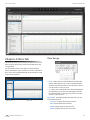
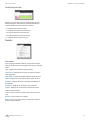
Data Panel Mouseover Functionality
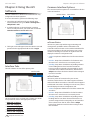
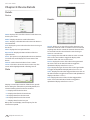
Custom views can be created, saved, and selected for
viewing here.
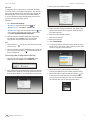
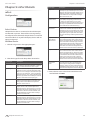
Use the mouse to hover over the data timeline and view
specific details.
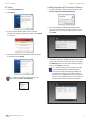
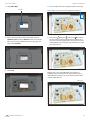
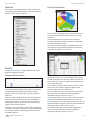
Create View Click to create a new view. Drag and drop
devices from the selection panel on the left side of the
screen to the data panel on the right side of the screen to
display data from multiple devices in one view. Sizing and
positioning are determined by where you drop the device
data in the view. You can drag and drop similar devices
into the same data grid to compare values.
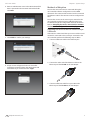
Save As... Click to save a new view. You will be prompted
to enter a name for the new view. Enter the name and
click Save. Click Cancel if you don’t wish to save the view.
Discard Click if you do not wish to save the new view.
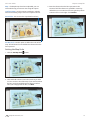
Click and highlight specific areas of the timeline to zoom
in on a specific section of the timeline. A magnifying
glass icon will appear and the timeframe you select will
be highlighted with a beige color. After making your
selection, all of the devices in the view will zoom to the
timeframe you specify. Use the Quick Links under the Data
Range selection if you need to zoom back out.
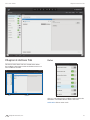
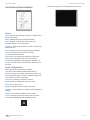
Device names can be clicked on in the data panel to open
the Device Details window.
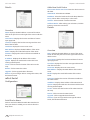
Renaming or Deleting a View
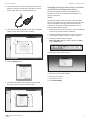
To rename or delete a view, click the view name to select
the view. The edit and delete icons will appear to the right
of the view name.
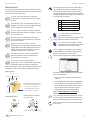
Config Click the Config icon and the Rename View
window will open. Change the name and click
Save. Click Cancel if you don’t wish to rename the
view.
Remove Click the Remove icon next to the view
name. There is no confirmation, so be sure you
want to delete the view.
Ubiquiti Networks, Inc.
For information on the Device Details window, go to
“Device Details” on page 26.
17