1
Quick Start Steps
Product Operation (Wireless)
1.
Install the MadgeTech 4 Software and USB Drivers onto a PC.
2.
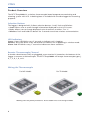
Plug an RFC1000 (sold separately) into a USB port on the base station computer.
(For transmissions over distances longer than 500’ indoors line of sight (2,000’
outdoors), plug additional RFC1000s into electrical outlets in between the base station
computer and the RFTCTemp2000A.) The red LED will illuminate on the RFC1000 to
signify that it has been connected correctly.
3.
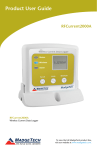
Push and hold the wireless button on the RFTCTemp2000A for 5 seconds to
activate wireless communication. The display will confirm “Wireless: ON” and the
blue LED will blink every 40 seconds.
4.
Launch the MadgeTech Software, the RFTCTemp2000A icon will automatically appear in the connected devices list, showing that the device has been recognized.
Select the logger in the connected devices list, and click the “claim” button, wait
for the device to finish updating. Select the Realtime Start method from the device
tab and choose a desired reading rate from the drop-down menu and click “start”.
To set up or choose an Alarm for a Realtime Session, select the alarm rules tab (Refer
to the Alarm Settings section).
Product Operation (Plugged In)
1.
Install the MadgeTech 4 Software and USB Drivers onto a PC.
2.
Plug the USB to Mini USB cable (included with your logger) into a USB port on
your computer. With the wireless mode turned “OFF” on your device, plug the opposite end of the cable into the communication port on your RFTCTemp2000A.
3.
Launch the MadgeTech Software, the RFTCTemp2000A icon will automatically
appear in the software showing that the device is recognized. Select the logger in
the software and choose your desired start method.
4.
To download your data, select the device, click the stop button, and then click the
download button to view your report in the graph.
Questions?
For more details and instructions, please refer to the rest of this guide,
visit us online at www.madgetech.com or contact us for support at 603-456-2011.
1