1
Viewing the “On-Screen” Demo
Ensure before commencing the demo that the
Microphone and webcam are attached to your PC
•
Select the Demo option displayed on the
homepage
•
Select “Allow” to enable camera and
microphone access
(You will now see the webcam image on the screen)
Size of Screen Image
To select the appropriate image size choose either
Actual Size or Fill Window
(If you select Fill Window the program will ask you
again to log-in before you can continue the
conference)
Adjusting the Settings
How do you improve the quality of the sound or image?
How do I stop others viewing my videoconference?
How can I increase the size of my FlashMeeting web folder?
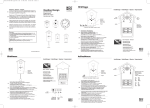
To adjust Adobe Flash Player Settings right-click on the webcam image displayed on the
screen
The following box will appear
To change one or all of the Settings click the
appropriate icon
Privacy – enables FlashMeeting
To record your videoconference
for you to view later
Enables the user to increase/decrease
The size of the FlashMeeting file on your
computer
Enables the user to adjust the level of the
“on-screen” microphone
Enables the user to select a different
webcam