1
2 Launching the Application
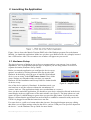
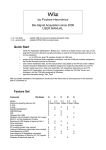
Figure 1 above shows the Muscle Tension (EMG) tab of the Platform program. Press the button
labelled 1 to launch the application. Make sure you have your BioEra licence key (dongle) inserted
into a USB socket. After a few seconds a new window will appear on your screen.
2.1 Hardware Set-up
The physical aspects of hardware set-up (how to connect and use your sensors,, how to check
impedances, etc.) are dependent upon the type of amplifier you are using, and are covered in a
separate document (Hardware Set-up Guide).
Before you start the application you configure the device set-up
options, accessible by clicking a button in the Set-up tab of the
Platform. In the dialog, select the type of amplifier (biofeedback
device) you are using, in the EMG source control. Note, all the
source settings are remembered the next time you start the
Platform. See the Installation and Set-up Guide for further details
of device set-up.
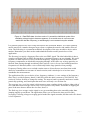
Figure 2 – amplifier status
One of the device options is 'Simulator'. In simulator mode, you
can learn how to use the software without the encumbrance of
sensors, leads etc. (The application simply uses recorded data as a source.)
Once you have started the application, you should see your device selection reflected in the device
status display in the top right corner of the main window (see figure 2). The lamp (shown as a red
square in figure 2) should change to green when you press the play button. If you do not see this
happen, it means that the application has not been able to establish a connection with your device.
Check it is plugged in and that the batteries are not flat.
For some devices, you'll see a button rather than just text. Pressing this button opens up a dialog
that allows you to adjust settings related to the device, such as COM port. The specifics depend on
the device – see the Hardware Set-up Guide for more details.
Basic EMG Application User Guide, copyright Glyn Blackett
page 3