1
eQTL Explorer Software User Guide
1. Logging In
When eQTL Explorer is launched you are presented with the following login window:
By default the guest login details appear in the window. Click ‘connect’ or press ‘enter’
to start the database connection.
2. The Main Screen
When eQTL Explorer has loaded and retrieved experiment information from the
database you will be presented with the main screen, from which you can fetch the
detailed information.
How to fetch data
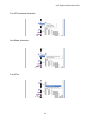
• Choose an experiment from the drop down list.
• Click on the tissue(s) you are interested in. If you wish to visualise eQTL information
for all tissues, click and drag on all tissue rows under the ‘QTL reaper analysis’
heading. Choose the value of the max eQTL size.
• By default, the p-value is 1.0E-4. You can change the p-value to any number
between 0 to1.
2.