1
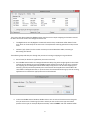
1. Introduction RedRat Control allows you to: 1. IR INPUT: Use an infrared remote to control PC applications. This is done by initiating various actions on the PC when RedRat Control recognizes IR signal input, such as creating key strokes, mouse movement or direct PC audio control. Section 4 describes this in more detail. 2. IR OUTPUT: Provides a simple method for PC applications to output IR signals, for example a web server or batch file scripts. Output of IR signals is based around Macros (sets of IR signals) that can then be output using a small command line utility called SendMacro (or SendMacroW). See section 5 for further information. 2. Prerequisites and Installation Before installing RedRat Control, please ensure that you have the following installed: The RedRat Signal Database Utility. The signal database utility can be downloaded from the RedRat website at: http://www.redrat.co.uk/Software/SignalDBUtil. 3. The First Step – Capture of Remote Control Signals To use RedRat Control, for both PC control or for output of IR signals, the IR signal dataset needs to be captured from the original remote control handset. This is done with the Signal Database application: The steps to create the database are as follows: 1. Add a device/remote (Edit Add Device/Remote) 2. Select the new device and add an IR signal to it (Edi t Add Signal). 3. In the “Add New Signal” dialog, give the signal an appropriate name, then press the Learn IR button. 3