1
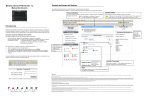
Account Information Screen
Module Configuration Screen
DHCP
If the IP100 is connected to a server using a static
address, the DHCP protocol is not necessary.
Click “No” and configure the IP100 manually.
Change Password
The IP100 module should only be
configured by the installer or a
qualified network administrator. For
more information on module
configuration, consult the IP100
Reference and Installation Manual.
It is highly suggested that you
change your password from the
default “paradox”.
The Account Information screen allows you to
store the following information for quick reference:
Account Information
Alarm system installer information
Monitoring station information
Logout
ParadoxMyHome.com
For security reasons, it is important to
logout when you have finished
monitoring your system.
When this is enabled, the Paradox
DNS service will contact your IP100
module to confirm its current IP
address.
As an added security feature, your P100
interface automatically logs out after it
has been inactive for 5 minutes.
With the polling time set to the
default (5 minutes), if the
IP100’s IP address changes,
communication will be lost for up
to 5 minutes until the DNS
server polls the IP100.
Decreasing the polling time will
result in increased
communication between the
IP100 and the Paradox DNS
server.
Email Configuration Screen
System Information Screen
It is not necessary to be logged in to be kept informed of changes in your system’s status. By
selecting Email Configuration from the Main Menu, you can configure the IP100 to send email SMTP Server
notifications to up to 16 email addresses.
SMTP Server information is usually provided
by the Internet Service Provider
The System Information screen contains important hardware
and software information on both your security system and
your IP100 module.
A user name and password may be required in
order for the IP100 to access the email server.
This information can now be entered into the
IP100’s Email Configuration Screen.
To find your SMTP settings
example: Outlook Express
1.
2.
3.
Click Tools D Accounts
Click the Mail tab D Select account
Click Properties D Servers tab
Email Accounts
To add an email address:
1.
2.
3.
4.
5.
Open the Email select drop-down box.
Select one of the 16 address locations.
Enter the email address in the “Send to”
box.
Select the areas and events which will
generate an email notification.
Click “Save”.
The first Email address (01) is used in
the Email’s “From” field. To avoid being
rejected as spam, the address used
should originate from the Internet
service provider to which the IP100 is
connected i.e.
jsmith@InternetServiceProvider.com.