1
Phase 4: Advanced Reporting
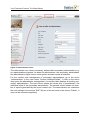
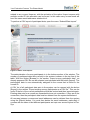
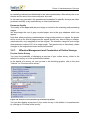
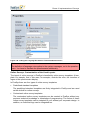
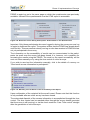
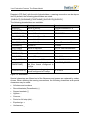
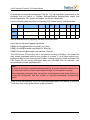
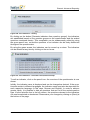
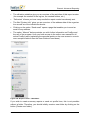
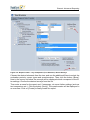
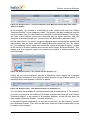
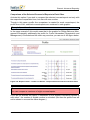
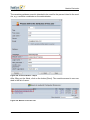
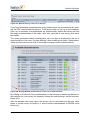
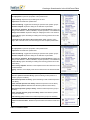
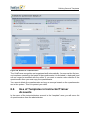
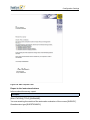
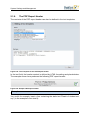
Here you can check once again which subunit you selected, what the report will be
called, and based on which questionnaire it will be created. Furthermore, the selected
survey period appears here again with the precise data defined by the administrator.
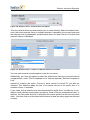
You can see how many surveys meet your selected criteria and to how many return
responses it applies (meaning completed questionnaires).
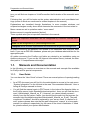
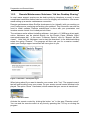
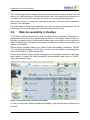
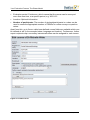
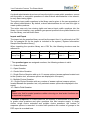
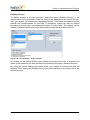
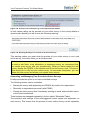
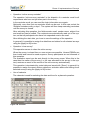
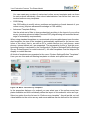
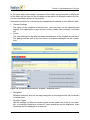
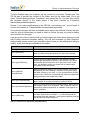
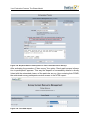
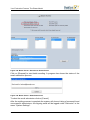
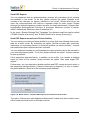
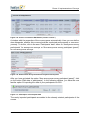
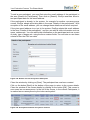
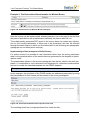
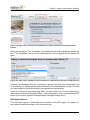
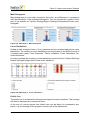
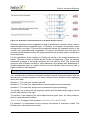
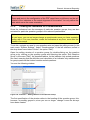
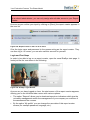
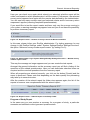
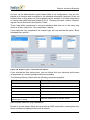
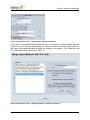
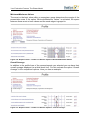
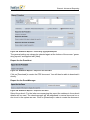
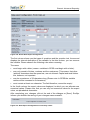
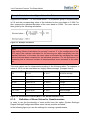
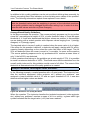
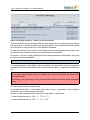
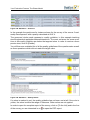
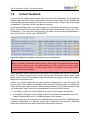
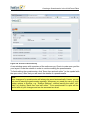
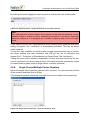
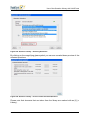
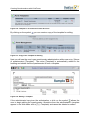
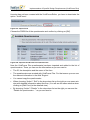
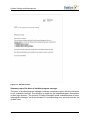
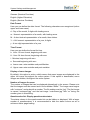
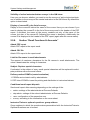
If you would like to test the report creator and have only very few surveys running in
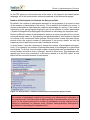
your system, a warning message may appear here and you do not have the possibility
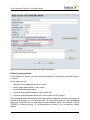
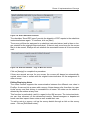
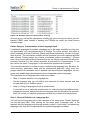
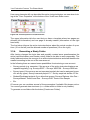
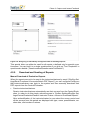
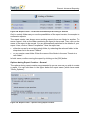
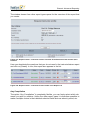
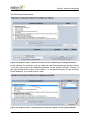
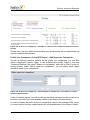
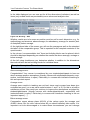
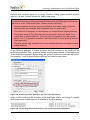
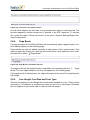
to produce a summary report:
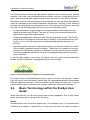
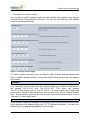
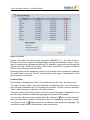
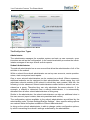
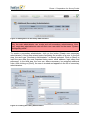
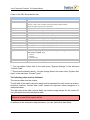
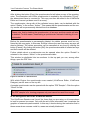
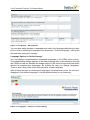
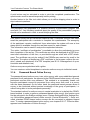
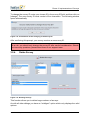
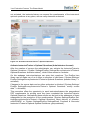
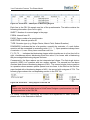
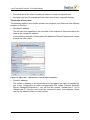
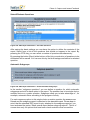
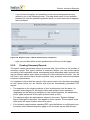
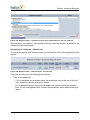
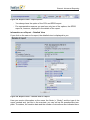
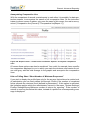
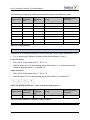
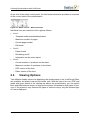
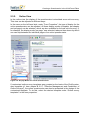
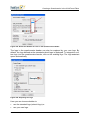
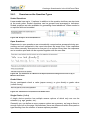
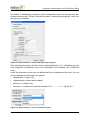
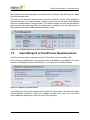
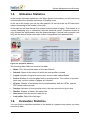
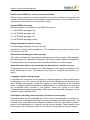
Figure 312: Report Creator – Number of Surveys below the Minimum Number
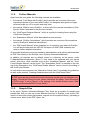
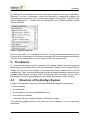
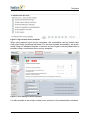
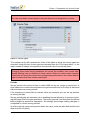
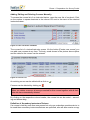
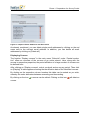
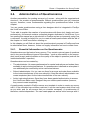
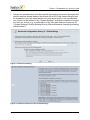
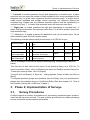
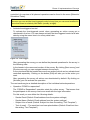
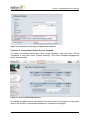
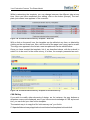
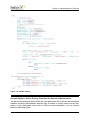
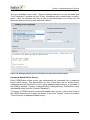
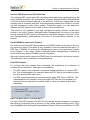
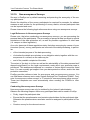
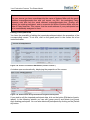
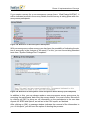
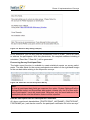
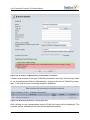
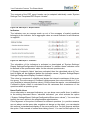
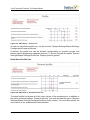
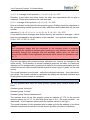
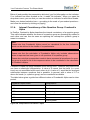
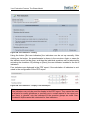
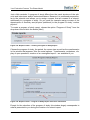
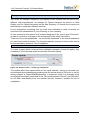
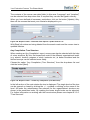
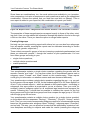
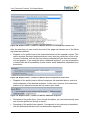
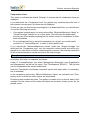
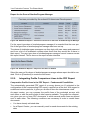
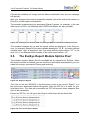
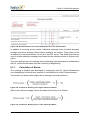
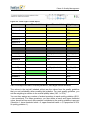
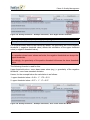
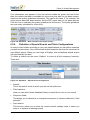
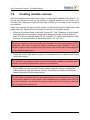
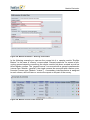
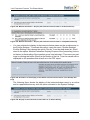
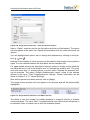
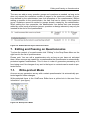
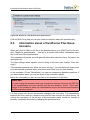
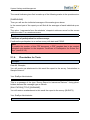
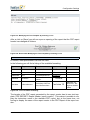
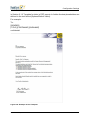
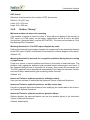
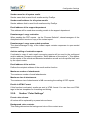
In this case, please inform your EvaSys administrator. For testing purposes, he can
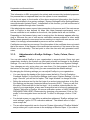
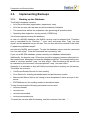
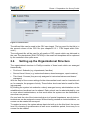
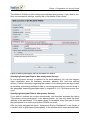
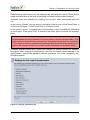
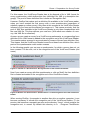
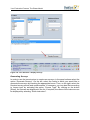
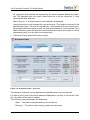
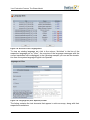
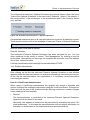
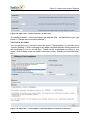
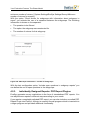
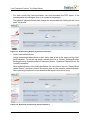
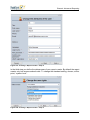
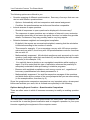
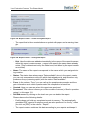
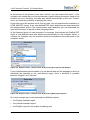
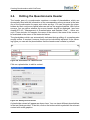
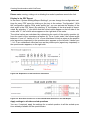
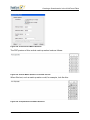
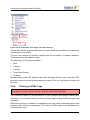
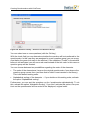
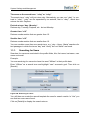
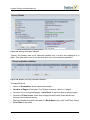
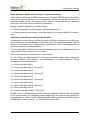
change in the EvaSys Settings under “System Settings/EvaSys Settings/Functions”
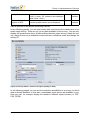
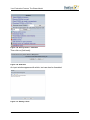
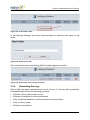
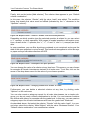
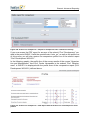
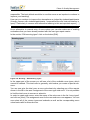
the option “Minimum survey number report creator” (by setting it to 0):
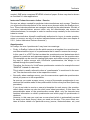
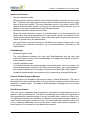
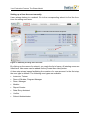
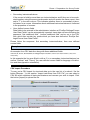
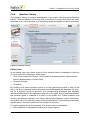
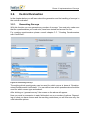
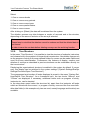
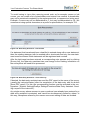
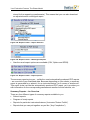
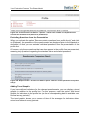
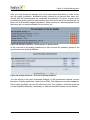
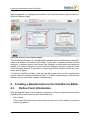
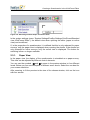
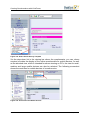
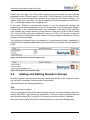
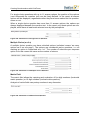
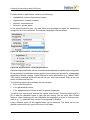
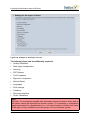
Figure 313: Administrator Login: System Settings/EvaSys Settings/Functions – “Minimal survey
number report creator”
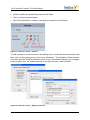
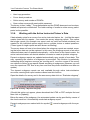
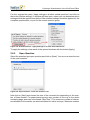
This way the message no longer appears and you can create the test reports.
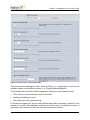
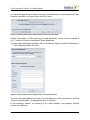
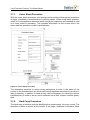
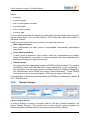
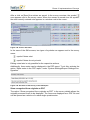
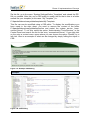
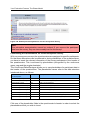
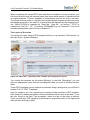
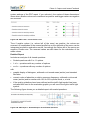
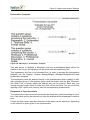
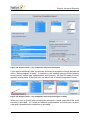
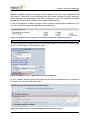
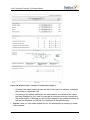
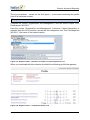
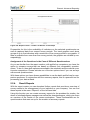
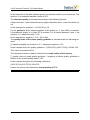
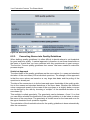
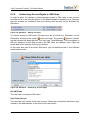
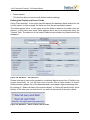
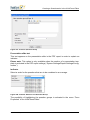
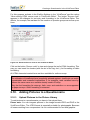
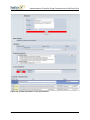
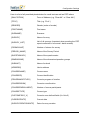
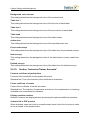
Amongst the general information on the summary report you will find a listing of the
questions of the related questionnaire. Here you can deactivate selection boxes as
required and thus exclude questions from the summary report.
When all properties are selected correctly, you click on the button [Create] and the
report is produced. Please note that depending on the data quantity the processing
may take up to several minutes.
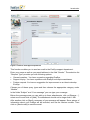
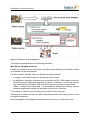
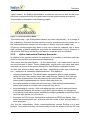
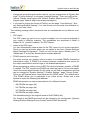
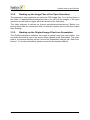
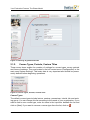
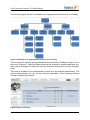
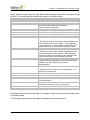
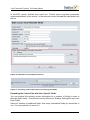
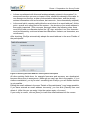
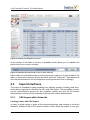
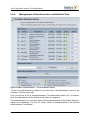
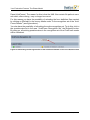
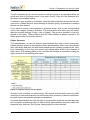
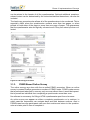
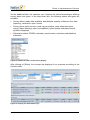
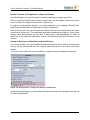
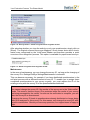
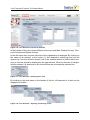
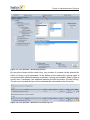
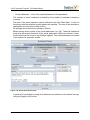
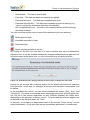
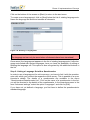
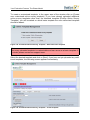
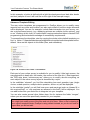
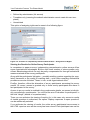
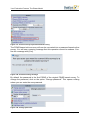
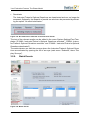
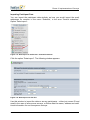
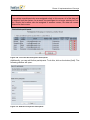
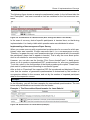
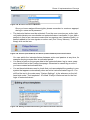
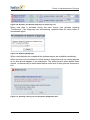
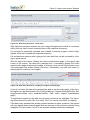
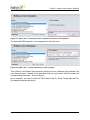
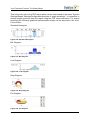
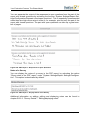
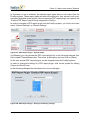
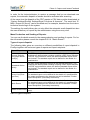
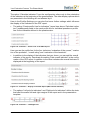
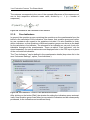
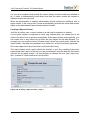
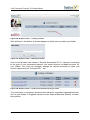
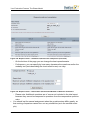
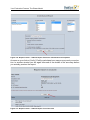
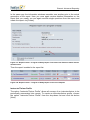
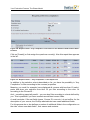
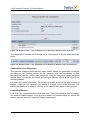
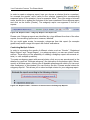
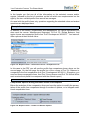
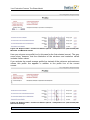
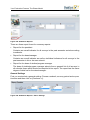
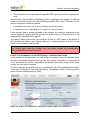
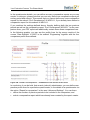
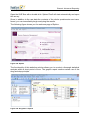
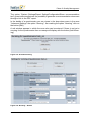
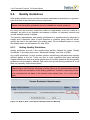
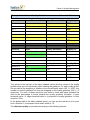
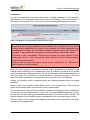
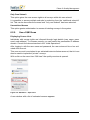
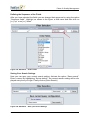
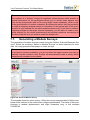
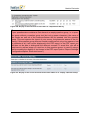
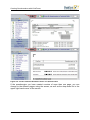
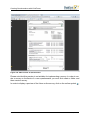
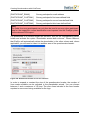
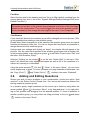
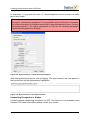
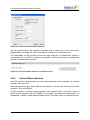
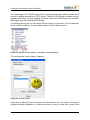
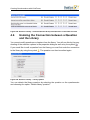
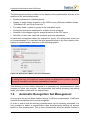
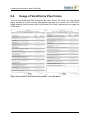
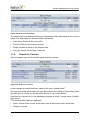
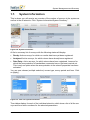
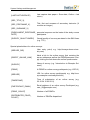
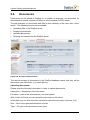
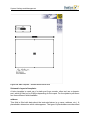
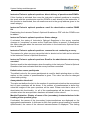
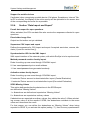
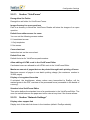
After the creation of the subunit report the folder view appears again, the list of the
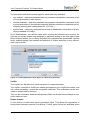
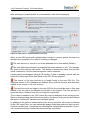
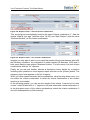
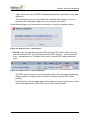
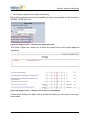
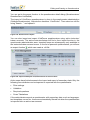
reports is however now complemented with the subunit report:
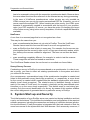
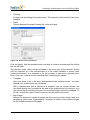
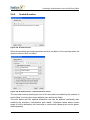
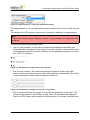
Figure 314: Report Creator – Subunit Report in the Study Folder
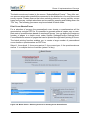
Program of Study Report
In the same way you can produce a summary for a program of study, a particular
semester and selected course types and questionnaires.
© 2011 Electric Paper GmbH
261