1
How to Install
System Requirements
Periodic will not function properly with any versions of WordPress prior to v2.9. Please verify which version you are
running before you upload Periodic to your WordPress environment.
Uploading Theme Files
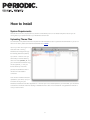
You will need an FTP (File Transfer Protocol) Client and administrative access to upload and install Periodic. If you do not
have an FTP client, please download the free Mozilla client, Filezilla.
Launch your FTP client, login to the
web server that is running
WordPress and navigate through
the following directories (folders):
wp-content > themes. Once you
are inside your themes directory,
select the folder, periodic_v1, from
your ThemeForest download. Drag
and drop periodic_v1 into your
themes directory. This entire
process should take less than 2
minutes with a broadband
connection.
Once the all of the files have been
uploaded to your server, quit your
FTP client and log into your
WordPress Dashboard and select Appearance > Themes. Upon a successful upload of your theme files, you should see
a screenshot of Periodic under the heading of Available Themes. Click on the Activate link. Congratulations! Periodic is
now your active theme.
3