1
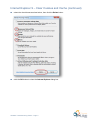
Member and Pensioner Services Online – Forbidden Error Use the following procedure to avoid forbidden error messages on Member Services Online (MSO) and Pensioner Services Online (PSO). The error appears as Forbidden, you are not authorised to view this page message. When IE9 is being used, steps should be taken to start an InPrivate browsing session. Using InPrivate browsing will help protect member account information and data entered into MSO and PSO. This can be done by pressing CTRL+Shift+P or by the following steps: under Tools select InPrivate browsing the InPrivate browsing will open to a new window/session when the InPrivate browsing session has started an InPrivate box will appear to the left of the address bar, as shown in the above image to login, type the scheme website into the address bar of the InPrivate browsing session, then follow the steps to log in by navigating to MSO and PSO login Please note: This session will expire as soon as the InPrivate browsing session is closed. This process will need to be followed each time access is required. Website Troubleshooting Guide – Page 3