1
Easy to Use
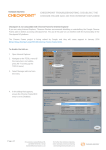
Unique graphical elements such as status flags enable you to quickly identify and evaluate information in KeyCite. Results are
presented in the left pane with the document you are viewing in the right pane for easy navigation.
Split Pane View
Left frame - Results
Status flags
enabling quick
identification of
history
Right Frame document you are
viewing
Full History on
one page
Results Screen
2. Accessing KeyCite
There are several ways to access information in KeyCite:
From the Begin Research Screen:
At the Begin Research Screen, type in a citation in the
KeyCite by Citation prompt and click Go.
KeyCite by Citation Prompt
Alternatively enter your search terms in the Quick Search Terms & Connectors search box in the right frame (for example refugee & member! /p “social group”), tick the Australian Cases box, and Click Go. From your search result access the KeyCite
tabs from the left frame.
Enter Search Terms
- Check Australian
Cases and click Go
From Search
Result, access
KeyCite
information by
clicking on left
frame tabs
Begin Research Screen
Result List
KEYCITE USER GUIDE
2