1
Commerce Manager | 113
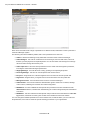
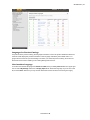
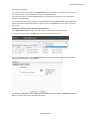
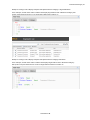
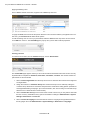
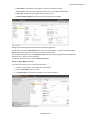
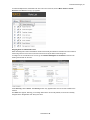
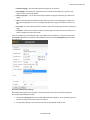
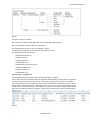
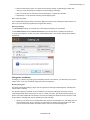
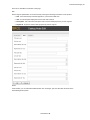
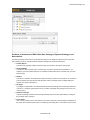
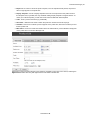
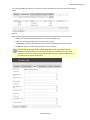
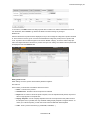
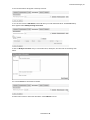
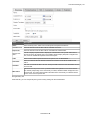
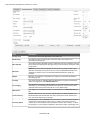
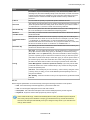
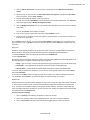
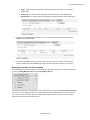
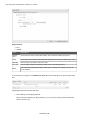
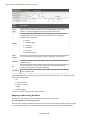
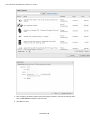
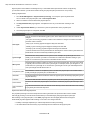
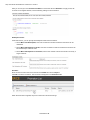
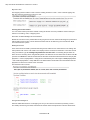
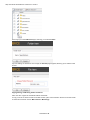
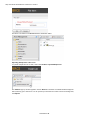
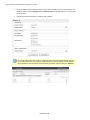
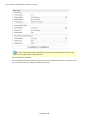
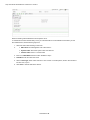
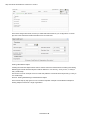
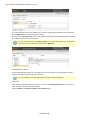
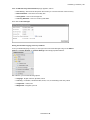
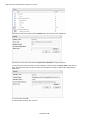
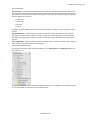
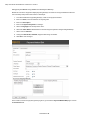
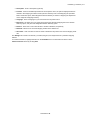
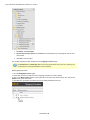
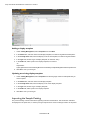
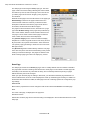
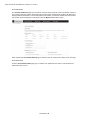
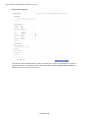
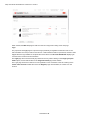
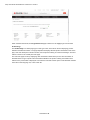
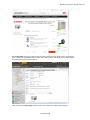
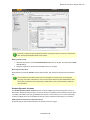
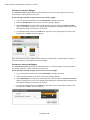
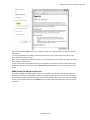
l Image - (type as "image," all lowercase) thumbnail icon(s) will appear on the product details page.
l Downloads - a "Downloads" tab will appear towards the bottom of the details page.
l Specifications - a "Specifications" tab will appear towards the bottom of the details page.
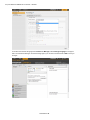
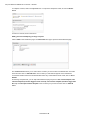
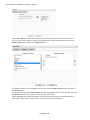
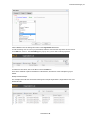
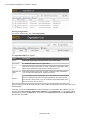
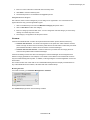
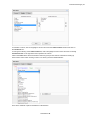
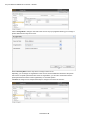
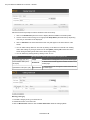
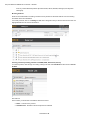
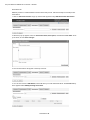
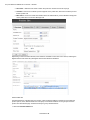
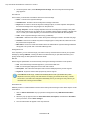
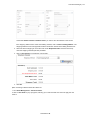
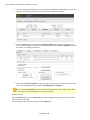
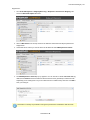
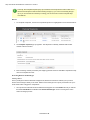
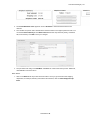
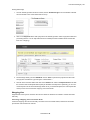
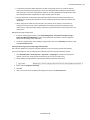
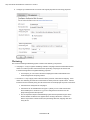
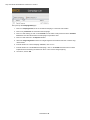
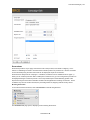
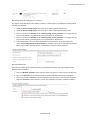
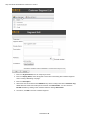
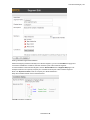
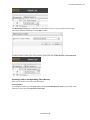
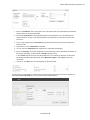
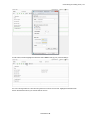
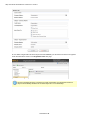
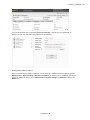
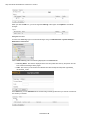
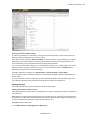
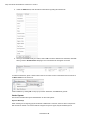
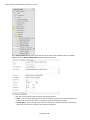
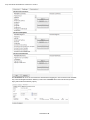
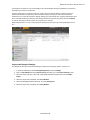
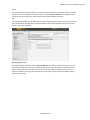
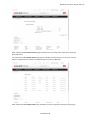
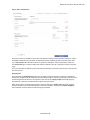
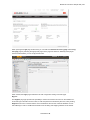
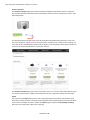
3. Once an asset is added to the list below, you can choose to edit specific assets, such as their Group name and Sort Order.
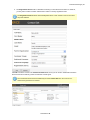
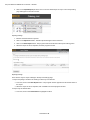
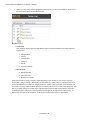
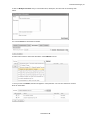
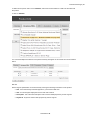
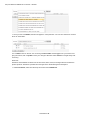
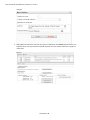
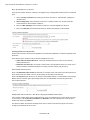
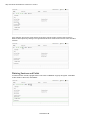
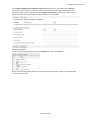
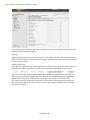
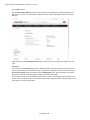
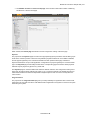
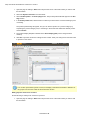
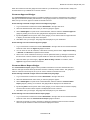
4. Once done, click OK and the new category/node will be created. You will be redirected to the Node List. Otherwise, select Cancel to go back to the Node List without saving any changes.
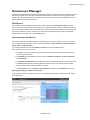
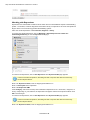
Searching for Entries in Your Catalog
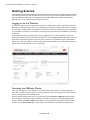
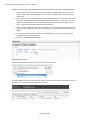
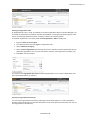
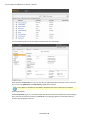
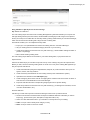
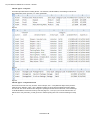
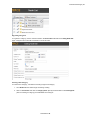
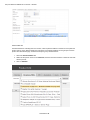
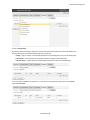
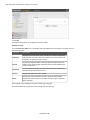
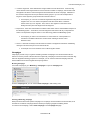
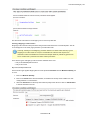
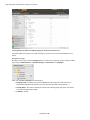
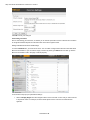
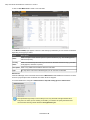
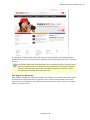
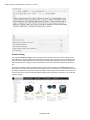
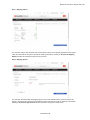
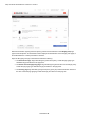
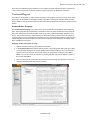
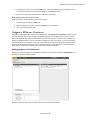
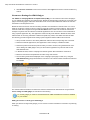
The Catalog Search function enables you look for specific sales items stored in the Commerce Manager.
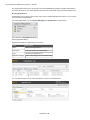
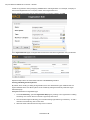
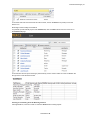
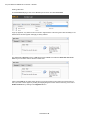
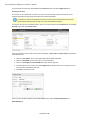
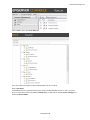
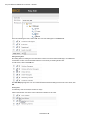
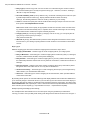
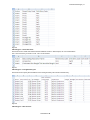
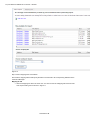
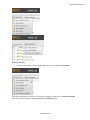
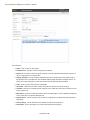
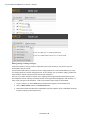
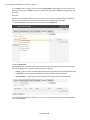
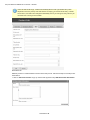
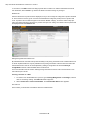
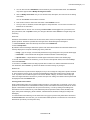
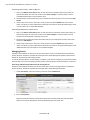
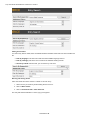
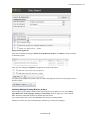
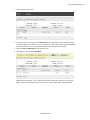
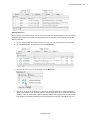
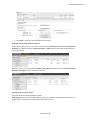
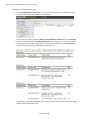
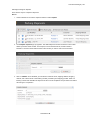
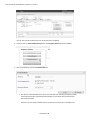
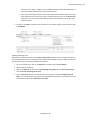
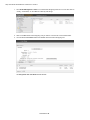
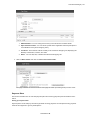
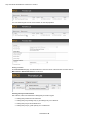
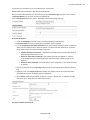
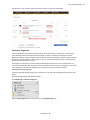
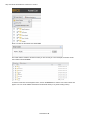
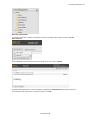
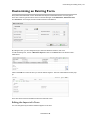
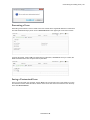
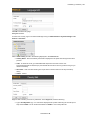
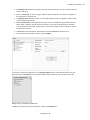
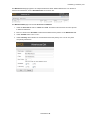
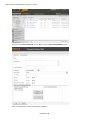
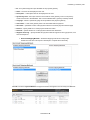
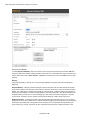
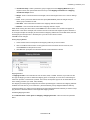
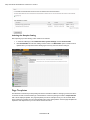
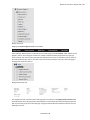
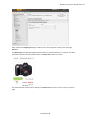
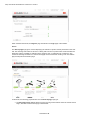
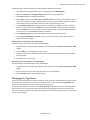
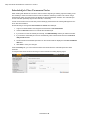
1. Click on Catalog Management and then Catalog Entry Search. 2. To do a basic search for catalog entries, enter a one keyword or more into the Search by Keywords(s) field, such as "canon digital cameras". The search will return entries that match either of those keywords. 3. If you input keywords around quotation marks ("canon digital cameras"), then search will only fetch entries that have those exact three keywords.
© EPiServer AB