1
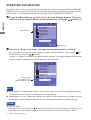
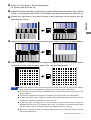
TROUBLE SHOOTING If the monitor fails to operate correctly, please follow the steps below for a possible solution. 1. Perform the adjustments described in OPERATING THE MONITOR, depending on the problem you have. If the monitor does not get a picture, skip to 2. 3. If you are experiencing a problem which is not described below or you cannot correct the problem, discontinue using the monitor and contact your dealer or iiyama service center for further assistance. Problem A The picture does not appear. (Power indicator does not light up.) Check The Power Cable is firmly seated in the socket. The Power Switch is turned ON. The AC socket is live. Please check with another piece of equipment. (Power indicator is green.) If the blank screen saver is in active mode, touch the keyboard or the mouse. Increase the Contrast and/or Back Light level. The computer is ON. The Signal Cable is properly connected. The signal timing of the computer is within the specification of the monitor. (Power indicator is orange.) If the monitor is in power management mode, touch the keyboard or the mouse. The computer is ON. The Signal Cable is properly connected. The signal timing of the computer is within the specification of the monitor. B The screen is not synchronized. The Signal Cable is properly connected. The signal timing of the computer is within the specification of the monitor. The video output level of the computer is within the specification of the monitor. C The screen position is not in the center. The signal timing of the computer is within the specification of the monitor. D The screen is too bright or too dark. The video output level of the computer is within the specification of the monitor. E The screen is shaking. The power voltage is within the specification of the monitor. The signal timing of the computer is within the specification of the monitor. F The touch screen shows no response. The RS-232C Cable or the USB Cable is firmly seated in the socket. Touch screen driver software is installed. G The touch position does not deviate. The calibration function set up correctly. TROUBLE SHOOTING 18 ENGLISH 2. Consult the following items if you cannot find an appropriate adjustment item in OPERATING THE MONITOR or if the problem persists.