1
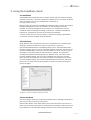
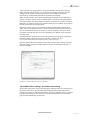
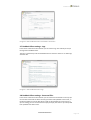
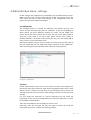
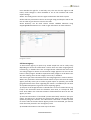
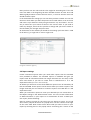
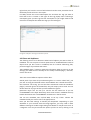
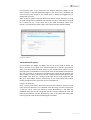
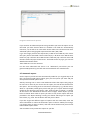
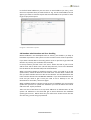
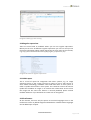
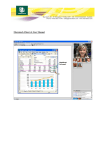
Feedback user guide, version 3.x 2. Using the Feedback clients 2.1 Installation The Feedback client for PDF-‐files has an installer. Double-‐click the installer and follow the online instructions. The client is developed in Adobe Flex and it requires the Adobe Air to be installed. Get it for free for Macintosh or Windows at http://get.adobe.com/air/ InDesign plug-‐in or xtension for QuarkXPress: Install the plugin / xtension in a standard InDesign / QuarkXPress license. The installation is made by using the installer provided. You need to be logged in on the machine as an administrator to do the installation. When installed go to InDesign -‐ Preferences -‐ Feedback / QuarkXPress -‐ Preferences -‐ Feedback and you will see the settings for Feedback. 2.2 and 2.3 shows how you set up the plug-‐in / xtension for InDesign / QuarkXPress. 2.4 and after is for the Feedback client for PDF-‐files. 2.2 Preferences Server Address. This is the address to the server of Feedback. This is needed to give the plugin / xtension the address to where to information is saved. E.g. http://demo.laidbacksolutions.se/feedback/ Folder to Scan. Select the folder where you have the pages you want to scan and add to Feedback. Scan time. Set a time if you want the Feedback plugin / xtension to scan this folder at a certain time every day. If left empty, the scanning is made on manual request. Publisher. This popup will normally be populated automatically with your publisher name. The value is taken from the database settings. Title. If you are a publisher with more than one titles, please select for which title this run is made. The values in this popup menu is taken from the database settings. Generate and upload PDF-‐files. Choose if you like this to be done or not. If you choose to generate PDF´s it will of course take a bit longer to process the pages. Image 2.2.1 The Feedback plugin/xtension 2.3 Run Feedback Once the settings is made you will have the Feedback menu in InDesign / QuarkXPress with only one menu item, Process documents... Choose Add to browse to the folder where you have the documents you want to run, make sure you have the right values in the popup menus Publisher, Title and Issue and hit the OK button and the Feedback plugin / xtension starts executing the documents. www.laidbacksolutions.se Page 2 of 2