1
1.
Usage
1.1.
Overview of the application interface
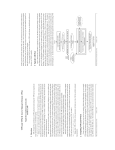
Flow map eXplorer can have several layouts, which you can configure. However the most typical layout
looks like the one shown in Figure 1.
Figure 1: Start-up application in Full-Screen mode and Vertical Layout
The layout comprises three parts. The top part includes a menu bar (to the left) and two tool bars (to
the right). The middle part includes three panels: a histogram panel (to the left), a map panel (in the
center) and a story panel (to the right). The story panel is collapsed as default if there is no story loaded
at start up. The bottom part is an animation control bar which is shown up if there is more than one
time steps in the data input. Otherwise it will be disappeared.
2