1
IP/SIP Trunk Software User Guide
Manually Defining new Entries
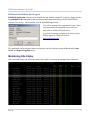
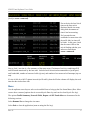
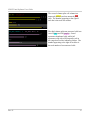
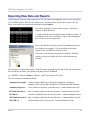
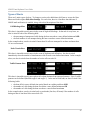
The second method of adding entries to the Network Table is performed from the Site Status screen by
hitting Enter to bring up the Site Status menu and selecting Network Table.
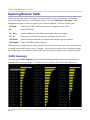
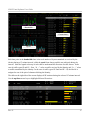
This sample network table has one item, created in the previous section via the Traffic Summary
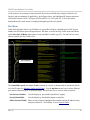
Use the up/down arrow keys to highlight a blank row, hit Enter to bring up the Network Table menu,
and choose option Add. Select traffic type and enter criteria to define the new item.
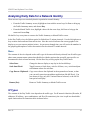
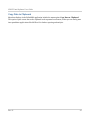
Menu
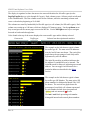
In addition to adding new items, the Network Table menu includes several other options.
Traffic:
Analyze monthly data for the currently highlighted identity, as documented in
Analyzing Monthly Data for a Network Identity.
Edit:
Edit name and definition for the currently highlighted identity.
Add:
Manually add a new identity to the Network Table (must have a blank row
highlighted). Select traffic type (IP, IP – port, IP – IP, or SIP number). Enter
criteria to define the new item, along with a meaningful name.
Delete:
Delete the currently identity from the Network Table.
Capture packet: Initiate packet capture using the currently highlighted item as a filter, as
documented in Troubleshooting with Packet Capture.
Building up a detailed Network Table, either manually or through the Traffic Summary screen, can
dramatically increase the effectiveness of several displays as meaningful names are used in place of
addresses and numbers. The Traffic and Capture packet menu options fulfil the third purpose of the
Network Table; to provide quick access to important network items without searching through the
Traffic Summary screen.
Rev. 61
21