1
Market Participant Graphical User Interface User's Guide
4 Displays
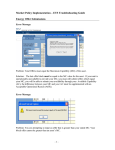
The user or market participant must then select (i.e. highlight with mouse cursor) the certificate
desired for presentation to the MOS Web server for authentication from the list of Signing Key
certificates that have been imported into the browser from P12 files created with the IESO CLS
(Certificate Lifecycle) application.
Only certificates issued by the IESO for the particular environment (Production or Sandbox) will be
available for use since the IESO issued client certificates must have a matching CA parent chain to the
CA issued IESO certificate residing on the MOSWEB server. Thus IESO issued test certificates will
not work on the production environment but will on the Sandbox system and vice versa. Once the
desired certificate has been selected with the mouse cursor and highlighted, clicking on the ‘Continue’
button shall enable it to be presented to the MOS Web server for authentication. There may of course
be only one certificate available within the user’s profile and if this is true, automatic certificate
selection covered below is a more appropriate method of use.
It has been strongly recommended by the IESO in the Participant Technical Reference Manual,
Section 2, Participant Workstation Network and Security that the browser be configured such that each
user’s certificate is in a separate Netscape Communicator user profile. This is so that only one
certificate is available for presentation and use during a session. Under such conditions the
“Certificate to identify you to a web site: Select Automatically” can be used and no browser ‘Select a
Certificate’ popup window will display and the user shall never have to go through the manual
presentation step. For most users automatic certificate selection will be the preferred method and
should be more user-friendly and efficient. To configure the browser for automatic certificate
selection the user should select the Communicator menu then the Tools/ Security Info selection in the
popup menus (or alternatively click on the padlock symbol / ‘Security’ button in the toolbar). The
Navigator link on the left-hand side of the Security Window should be clicked on to activate the
required window and field access. The user can then choose the ‘Select Automatically’ option (or the
actual user certificate selection) for the “Certificate to identify you to a web-site:” setting.
The presented certificate must be valid and officially represent that user as per the Certificate
Subscriber Agreement signed by the Market Participant. If it is not valid (i.e. has been revoked or has
expired), then access will be denied when the corresponding EPF file is presented via the MPI applet
for login as described further down in this section. Successful presentation of the browser-based
certificate shall result in establishment of the required SSL session and security context enabling
continuity of encrypted session communications.
Issue 7.0 – June 1, 2005
Public
19