1
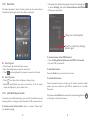
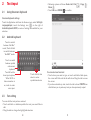
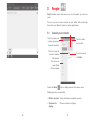
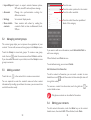
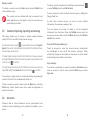
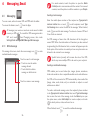
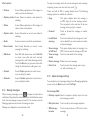
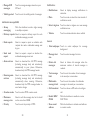
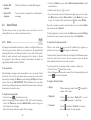
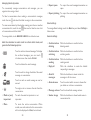
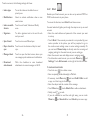
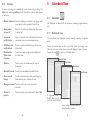
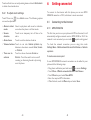
1.3.3 Search bar The tablet provides a Search function which can be used to locate information within applications, the tablet or the web. • Drag down the Quick settings panel and touch the settings icon to enter Settings, then touch Security\Screen lock\Pattern. • Draw your own pattern. Draw your unlock pattern Touch to confirm by drawing pattern again Search by text • Touch Search bar from the Home screen. • Enter the text/phrase you want to search for. on the keyboard if you want to search on the web. • Touch Search by voice from Search bar to display a dialog screen. • Touch • Speak the word/phrase you want to search for. A list of search results will display for you to select from. 1.3.4 Lock/Unlock your screen To protect your tablet and privacy, you can lock the tablet screen by choosing slide or creating a variety of patterns, PIN or password, etc. To create a screen unlock PIN/Password • Touch Settings\Security\Screen lock\PIN or Password. • Set your PIN or password. To lock tablet screen Press the Power key once to lock the screen. To unlock tablet screen Press the power key once to light up the screen, draw the unlock pattern you have created or enter PIN or password, etc. to unlock the screen. If you have chosen Slide as the screen lock, touch and drag the icon to the right to unlock the screen. To create a screen unlock pattern (refer to section "Screen lock" for detailed settings) 14 15