1
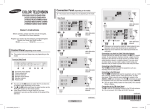
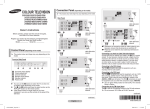
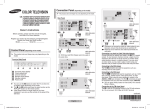
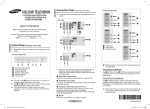
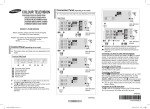
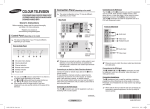
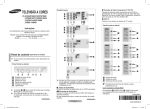
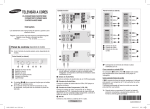
Switching the Television On and Off Viewing the Menus The mains lead is attached to the rear of the television 1 Press the MENU button. The main menu is displayed on the screen. Its left side has five icons: Input, Picture, Sound, Channel, and Setup. 2 Press the ▲ or ▼ button to select one of the icons. Press the ENTER button to access the icon’s sub-menu. 1 Plug the mains lead into an appropriate socket. The main voltage is indicated on the rear of the television and the frequency is 50 or 60Hz. 2 Press the “ I ” button (On/Off) on the front (or side) of the television. 3 Press the POWER button on the remote control to switch the television on. The programme that you were watching last is re-selected automatically. If you have not yet stored any channels, no clear picture appears. Refer to “Channel - Auto Store” on page 3 or “Channel - Manual Store” on page 4. If the television is initially powered on, several basic customer settings proceed automatically. Refer to “Setup - Plug & Play” on page 3. ➢ 3 Press the ▲ or ▼ button to move to items in the menu. Press the ENTER button to enter items in the menu. 4 Press the ▲/▼/◄/► button to change the selected items. Press the MENU button to return to the previous menu. 5 To switch the television off, press the “ I ” button (On/Off) on the front (or side) of the television. Placing the Television in Standby Mode When the television is initially powered on, several basic customer settings proceed automatically and subsequently. The following settings are available. The television can be placed in standby mode, in order to reduce power consumption and wear of the cathode ray tube. Standby mode can be useful when you wish to interrupt viewing temporarily (during a meal, for example). 1 2 Press the POWER button on the remote control while viewing. The television is in standby mode. ➢ To switch the television back on, simply press it again. You can also switch on by pressing the TV, P / P , or numeric button. ➢ ☛ Do not leave the television in standby mode for long periods of time (when you are away on holiday, for example). Turn the television off by pressing the “ I ” button (On/Off) on the front (or side) of the television. It is best to unplug the set from the mains and aerial. If the television is in standby mode, press the POWER button on the remote control. The message Start Plug & Play. is displayed. To start Plug & Play, press the ENTER button. The Language menu is displayed. The Language menu will automatically appear after several seconds, even if the ENTER button is not pressed. 2 Plug & Play Start Plug & Play. Enter OK To search the channels, press the ENTER button. To stop the search, press the ENTER button. When the channel searching has finished, the Clock Set menu is displayed. Press the ◄ or ► button to move to the hour or minute. Set the hour or minute by pressing the ▲ or ▼ button. When you have finished, press the MENU button. The Enjoy your watching. is displayed, and then the channel which has been stored will be activated. Plug & Play Auto Store Start Enter Skip Plug & Play Auto Store P 1 102MHz 7 % Stop Enter Skip Plug & Play Clock Set 12:00 Move Adjust am Enter Skip Enjoy your watching. OK Setup - Plug & Play (depending on the model) 1 4 5 Press the EXIT button to exit from the menu. ➢ 4 3 Re-setting the Plug & Play Method: MENU ▲/▼ (Setup) ENTER ▲/▼ (Plug & Play) ENTER TV Setup Plug & Play Language : English Time Child Lock Blue Screen : Off Move Enter ► ► ► ► ► Return Exit Plug & Play Language English Français Indonesia Melayu Türkçe Move Enter Skip Select the appropriated Plug & Play language by pressing the Check antenna input. ▲ or ▼ button. Press the OK ENTER button. Enter Skip The Check antenna input. is displayed. If any language is not selected, the language menu will disappear about 30 seconds later. ➢ continued... English - AA68-3996A_Eng_0411.indd 3 2008-05-27 오후 7:24:04