1
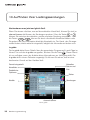
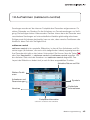
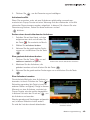
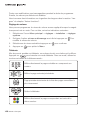
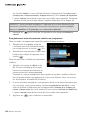
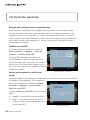
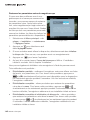
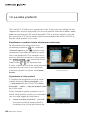
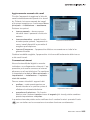
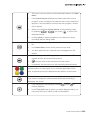
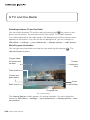
Modifying a Recording in Progress
1.
Tune to the channel on which the
recording is being made and press the
key. A menu appears.
2.
Select modify recording.
3.
Make desired changes and accept them
with
.
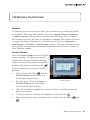
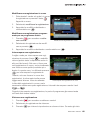
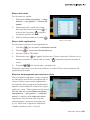
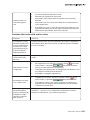
Modifying a Future Program Reservation
1.
Press
central.
to get to the cablecom
2.
Highlight the recording to be modified
and press
.
3.
Make desired changes and accept them with
Modifying a Recording in Progress
.
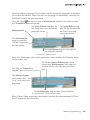
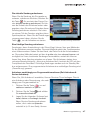
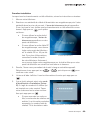
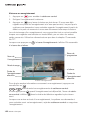
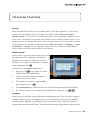
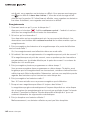
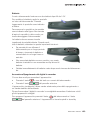
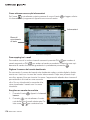
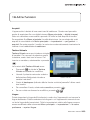
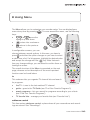
How to Stop Recording?
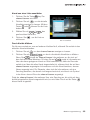
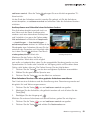
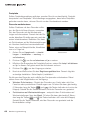
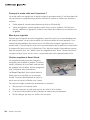
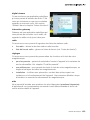
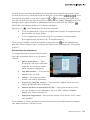
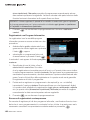
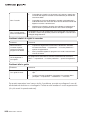
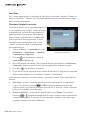
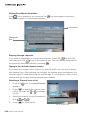
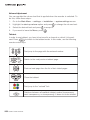
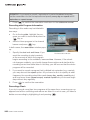
The simplest way to stop a recording is to
press
in the viewing mode (the key is
also available in other locations). If only one
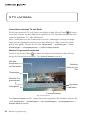
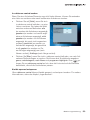
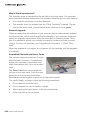
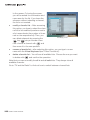
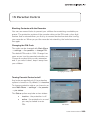
recording is in progress, you can see a popup like the one presented on the right. In this
case,
stops the recording.
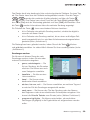
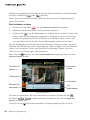
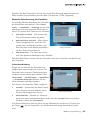
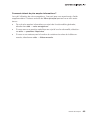
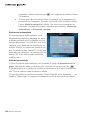
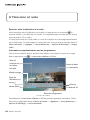
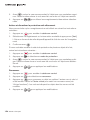
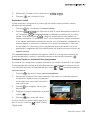
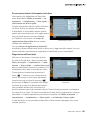
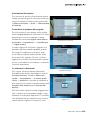
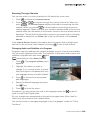
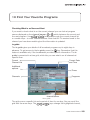
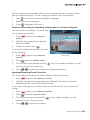
If there are two recordings, however,
the screen is slightly different. The list of
current recordings is displayed and you
have to select the recording to stop with
or
.
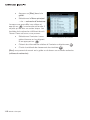
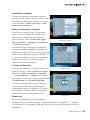
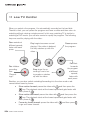
Stopping a Recording If One Recording Is in
Progress
When you stop a recording, the part that
has already been saved on disk remains untouched.
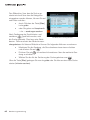
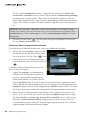
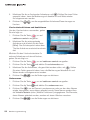
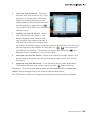
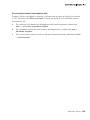
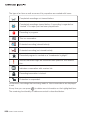
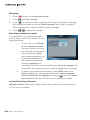
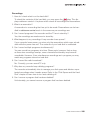
Watching a recording
1.
Press
to get to the cablecom central.
2.
Highlight the recording to be played.
3.
Press
to start full-screen playback. If you have watched some part of the
recording before and you did not reach the end, you may be asked to decide
whether you want to watch the recording form the beginning or from the point
at which you recently interrupted the playback.
User Instructions 261