1
•
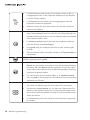
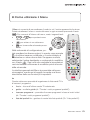
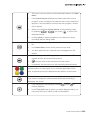
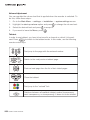
Frame-by-frame backward: pause the video with
to go one frame backward.
•
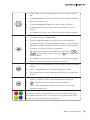
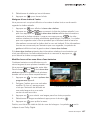
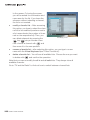
Replay: if you want to replay last several seconds of an event because
a goal has been scored or you did not catch something, you can press
. After reaching the point in which you pressed , normal playback
is automatically resumed.
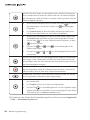
You may also catch up with live video by pressing
and then press
.
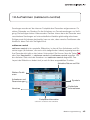
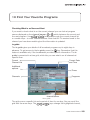
The Buffer
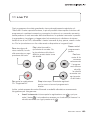
The recorder creates a “buffer” on the hard disk to store live broadcast. The buffer
stores some part of the program (one hour by default) and you can only rewind the
video within the scope of the buffer. When the buffer gets full, the current broadcast replaces the oldest part. If you have paused the video and the buffer is full,
playback is automatically started. In this way, only the last hour of a program is
stored. When you change the channel, the buffer is cleared.
You can change the length of the buffer with the Main Menu → settings → your
preferences → recording options → time-shift buffer size option.
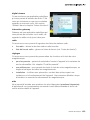
Time shift
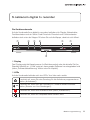
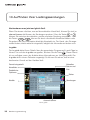
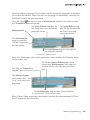
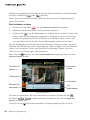
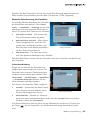
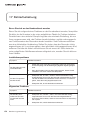
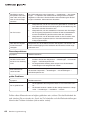
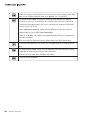
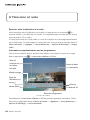
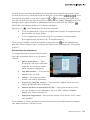
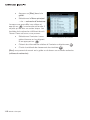
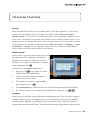
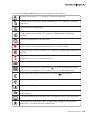
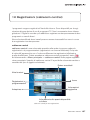
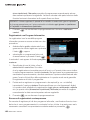
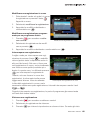
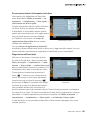
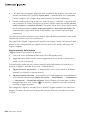
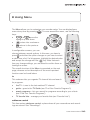
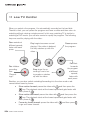
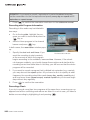
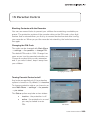
Each time you press one of the buttons that control live video, the channel banner
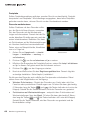
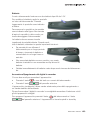
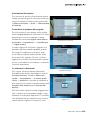
appears and the icon in its top-left corner changes. For example, if you pause a
program you will see the Pause icon:
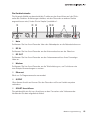
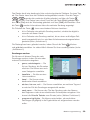
The Pause Icon
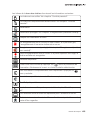
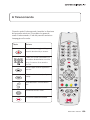
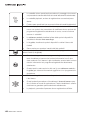
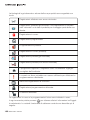
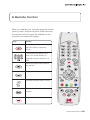
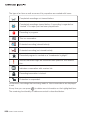
The icons are the same as those on the remote so you can easily guess what they
mean. Additionally, there may appear other information next to the icon. Look at
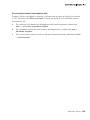
the Pause icon - there is a number next to it. In this case, the number shows in
how many minutes normal playback will be automatically resumed because the
buffer will be full. Other modes that feature such information are Fast-forward, Rewind, Slow Motion Backward, Slow Motion Forward where speed is displayed.
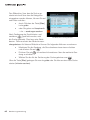
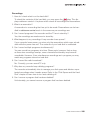
The icons are displayed constantly unless you change the mode. Whenever you
catch up with live video, a similar icon appears that reads Live.
User Instructions 255