1
Service Manual
NOTE: Each docking station has
3 different Partition types. There
are three center Partitions, one
right and one left. If replacing
a left partition, you will need to
pull the docking station forward
a few inches in order to access
the screw located on the left edge
of the dock. Follow appropriate
instructions based on Partition
type.
Dell Mobile Computing Station
Left Partition
Center Partitions
Right Partition
RIGHT / CENTER PARTITION
REPLACEMENT STEPS
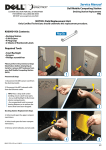
6. Use a Phillips head screw driver to
remove the single screw attaching the
faulty Right or Center Partition to the
back wall of the docking station.
7. Slide the faulty Partition out of the
dock and slide the new Partition in its
place. Secure the new Partition using
provided screw and Phillips head screwdriver.
8. Place netbooks in docking stations.
9. Close and lock upper compartment
doors.
RIGHT / CENTER PARTITION
REPLACEMENT IS NOW COMPLETE
6
7
LEFT PARTITION
REPLACEMENT STEPS
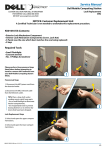
6. Use a Phillips screwdriver to remove
the 2 screws anchoring the dock containing the faulty partition.
7. Gently pull the docking station
forward an inch or two - until the Left
Partition screw can be reached with a
Phillips screwdriver. Remove the screw
and slide the partition off the docking
station. Slide the new Left Partition on to
Dock and secure with provided screw.
8. Push docking station back into place;
secure with two screws previously
removed.
CUSTOM SOLUTION FOR DELL BY ERGOTRON
FOR SERVICE CALL (800) 888-8458
OR VISIT www.ergotron.com/Dell
9. Place netbooks in docking stations.
10. Close and lock upper compartment
doors.
LEFT PARTITION
REPLACEMENT IS NOW COMPLETE
888-97-079-W-01 rev. B • 08/09
2/4